Weight Loss Recap for 2011 - and Why I Won't Write a Book
31 December 2011 • by Bob • General
One of my favorite comic strips is Pearls Before Swine, and the comic from September 30th, 2011, sums up why I would never be able to write a book about weight loss:

If you had read my blog post entitled The Geek's Guide to Weight Loss, you would have noticed that all I did to lose 50 pounds in six months was to eat less calories each day than my body uses on a daily basis. In the following six months, I've kept off the weight by making sure that I eat only as many calories as my body actually needs.
As a year-end recap, here's my average weight month-by-month for 2011:
| Month | Average |
|---|---|
| January | 203 |
| February | 190 |
| March | 178 |
| April | 171 |
| May | 166 |
| June | 164 |
| July | 160 |
| August | 160 |
| September | 159 |
| October | 159 |
| November | 160 |
| December | 161 |
My day-to-day chart for the entire year looks like the following:

I had a spike of a pound or two at Christmas - nobody's perfect. 
Storing IIS 7.5 WebDAV Properties in NTFS Alternate Data Streams
30 December 2011 • by Bob • IIS, Scripting, WebDAV
Two months ago Microsoft published an update for the WebDAV module that shipped with IIS 7.5 in Windows 7 and Windows Server 2008 R2, and this update is documented in the Microsoft Knowledge Base article ID 2593591:
This update enables administrators to configure the IIS 7.5 WebDAV module to store WebDAV-based properties in NTFS alternate data streams instead of properties.dav files. By way of explanation, WebDAV has two HTTP methods - PROPFIND and PROPPATCH - which enable WebDAV clients to store custom properties on a WebDAV server. These properties may contain anything that makes sense to the WebDAV client. For example, if you were creating a WebDAV client that stored Microsoft Office documents on a WebDAV server, you could store metadata in WebDAV properties for each document, like the author's name, document abstract, etc.
By default, the IIS 7.5 WebDAV module stores properties in system files in each folder of a website that are called properties.dav. These files are essentially text-based INI files that contain the encoded WebDAV properties for the various files in each folder. In contrast, the WebDAV functionality in IIS 6 had used NTFS alternate data streams to store WebDAV properties, which are described in the following Microsoft TechNet article:
After we shipped IIS 6, we received a lot of complaints from customers who were losing their WebDAV properties when they were copying their website files between NTFS and FAT file systems. This was expected behavior - NTFS alternate data streams will be removed when you copy files from NTFS to FAT. To remedy this situation, in IIS 7.0 we decided to switch to using INI-based functionality in order to prevent losing custom WebDAV properties when files are copied between disparate file systems.
When we were designing IIS 7.5, we wanted to add optional support for storing WebDAV properties in NTFS alternate data streams, and we wanted to do so because NTFS alternate data streams might perform faster when you are working with larger websites; however, we ran out of time to implement that functionality before we shipped Windows 7 and Windows Server 2008 R2. That being said, we still wanted to implement the feature, and the update that I listed at the beginning of this blog contains the functionality that is required to enable storing WebDAV properties in NTFS alternate data streams.
Enabling Alternate Data Streams for WebDAV Properties
The above information is good news for anyone who is storing large quantities of WebDAV properties, so your next logical question might be: "How do I enable NTFS alternate data streams for WebDAV properties ?"
Actually, it's really simple. In the KB article that I listed in the beginning of this blog, I documented two methods that show you how to enable storing WebDAV properties in NTFS alternate data streams:
- By modifying your applicationHost.config file
- By using AppCmd.exe
For the sake of completeness, I will repost some of the information here.
Method #1: Modifying your applicationHost.config file
You can enable storing WebDAV properties in alternate data streams for the simple property provider by adding a "useAlternateDataStreams" attribute to the property provider’s registration settings in your applicationHost.config file, which is highlighted in the following global configuration snippet:
<webdav>
  <globalSettings>
    <propertyStores>
      <add name="webdav_simple_prop"
        image="%windir%\system32\inetsrv\webdav_simple_prop.dll"
        image32="%windir%\syswow64\inetsrv\webdav_simple_prop.dll"
        useAlternateDataStreams="true" />
    </propertyStores>
    <lockStores>
      <add name="webdav_simple_lock"
        image="%windir%\system32\inetsrv\webdav_simple_lock.dll"
        image32="%windir%\syswow64\inetsrv\webdav_simple_lock.dll" />
    </lockStores>
  </globalSettings>
  <authoring>
    <locks enabled="true" lockStore="webdav_simple_lock" />
    <properties>
      <clear />
      <add xmlNamespace="*" propertyStore="webdav_simple_prop" />
    </properties>
  </authoring>
  <authoringRules />
</webdav>
Once you have enabled the feature, you have to restart IIS in order for it to take effect.
Method #2: Using AppCmd.exe
I wrote the following batch file for the KB article, which uses AppCmd.exe to enable the NTFS alternate data streams functionality, and it automatically restarts IIS for you:
pushd "%SystemRoot%\System32\Inetsrv"
iisreset /stop
appcmd.exe set config -section:system.webServer/webdav/globalSettings -propertyStores.[name='webdav_simple_prop'].useAlternateDataStreams:true /commit:apphost
iisreset /start
popd
Migrating IIS 7 WebDAV Properties into Alternate Data Streams
Once you've enabled storing WebDAV properties in alternate data streams, you are presented with a new challenge: "How do I migrate my existing WebDAV properties?"
Here's the situation, once you have enabled the alternate data streams feature, the WebDAV property provider is going to ignore any properties that have already been set in properties.dav files. With this in mind, I wrote a script that will migrate all of the WebDAV properties from all of the properties.dav files in a website into their corresponding per-file NTFS alternate data streams.
To use the following script, you will need to update the folder path in the third line of the script with the path to your website. Once you have done that, you can run the script to migrate your existing WebDAV properties.
NOTE: You need to run this script as an administrator!
Option Explicit

Dim arrFolderTree, intFolderCount

arrFolderTree = BuildFolderTree("C:\inetpub\wwwroot")

For intFolderCount = 1 To UBound(arrFolderTree)
  MigratePropertiesToADS arrFolderTree(intFolderCount)
Next

Sub MigratePropertiesToADS(strFolderPath)
  On Error Resume Next

  ' Declare all our variables
  Dim objTempFSO, objTempFolder
  Dim objTempPropertiesFile, objTempAlternateDataStream
  Dim strTempLine, strTempObjectName, blnTempOpenStream
  Const strTempPropertiesDAV = "\properties.dav"
  Const strTempAlternateDataStream = ":properties.dav:$DATA"

  ' Create a file system object.
  Set objTempFSO = WScript.CreateObject("Scripting.FileSystemObject")

  ' Flag the function as having a closed output stream.
  blnTempOpenStream = False

  ' Retrieve a folder object for the path.
  Set objTempFolder = objTempFSO.GetFolder(strFolderPath)

  ' Check for a properties.dav file in the current folder.
  If objTempFSO.FileExists(objTempFolder.Path & strTempPropertiesDAV) Then
    ' Open the properties.dav file for the current folder.
    Set objTempPropertiesFile = objTempFSO.OpenTextFile(objTempFolder.Path & _
      strTempPropertiesDAV,1,False,-1)
    ' Loop through the properties.dav file.
    Do While Not objTempPropertiesFile.AtEndOfStream
      ' Retrieve a line from the properties.dav file.
      strTempLine = Trim(objTempPropertiesFile.ReadLine)
      ' Check if it's a section heading.
      If Left(strTempLine,1) = "[" And Right(strTempLine,1) = "]" Then
        ' Parse the name of the object (file/folder).
        strTempObjectName = Replace(Trim(Mid(strTempLine,2,Len(strTempLine)-2)),"/","\")
        ' Strip off a backslash from the parent folder.
        If Len(strTempObjectName) = 1 Then strTempObjectName = ""
        ' Check to see if the file/folder exists.
        If objTempFSO.FileExists(objTempFolder.Path & _
             strTempObjectName) Or objTempFSO.FolderExists(objTempFolder.Path & _
             strTempObjectName) Then
          ' Create a file object for the alternate data stream.
          Set objTempAlternateDataStream = objTempFSO.CreateTextFile(objTempFolder.Path & _
             strTempObjectName & _
             strTempAlternateDataStream,True,-1)
          ' Write the WebDAV section header.
          objTempAlternateDataStream.WriteLine "[WebDAV]"
          ' Flag the function as having an open output stream.
          blnTempOpenStream = True
        Else
          ' Flag the function as having a closed output stream.
          blnTempOpenStream = False
        End If
      Else
        ' Check if we have an open output stream.
        If blnTempOpenStream = True Then
          ' Output a property.
          objTempAlternateDataStream.WriteLine strTempLine
        End If
      End If
    Loop
    ' Close the properties.dav file.
    objTempPropertiesFile.Close
  End If
  Set objTempFSO = Nothing
End Sub

Function BuildFolderTree(strTempBaseFolder)
  On Error Resume Next

  ' Declare all our variables
  Dim objTempFSO
  Dim objTempFolder
  Dim objTempSubFolder
  Dim lngTempFolderCount
  Dim lngTempBaseCount

  ' Create our file system object.
  Set objTempFSO = WScript.CreateObject("Scripting.FileSystemObject")

  ' Define the initial values for our folder counters.
  lngTempFolderCount = 1
  lngTempBaseCount = 0

  ' Dimension an array to hold the folder names.
  ReDim strTempFolders(1)

  ' Store the root folder in our array.
  strTempFolders(lngTempFolderCount) = strTempBaseFolder

  ' Loop while we still have folders to process.
  While lngTempFolderCount <> lngTempBaseCount
    ' Set up a folder object to a base folder.
    Set objTempFolder = objTempFSO.GetFolder(strTempFolders(lngTempBaseCount+1))
    ' Loop through the collection of subfolders for the base folder.
    For Each objTempSubFolder In objTempFolder.SubFolders
      ' Increment our folder count.
      lngTempFolderCount = lngTempFolderCount + 1
      ' Increase our array size
      ReDim Preserve strTempFolders(lngTempFolderCount)
      ' Store the folder name in our array.
      strTempFolders(lngTempFolderCount) = objTempSubFolder.Path
    Next
    ' Increment the base folder counter.
    lngTempBaseCount = lngTempBaseCount + 1
  Wend

  ' Return the array of folder names.
  BuildFolderTree = strTempFolders

End Function
In Closing
I have a couple final notes for you to consider:
- Enabling NTFS alternate data streams is a global WebDAV setting; you cannot do this on a per-site basis.
- As with IIS 6, once you enable storing WebDAV properties in NTFS alternate data streams, you will lose your WebDAV properties if you copy your files between NTFS and FAT file systems.
Note: This blog was originally posted at http://blogs.msdn.com/robert_mcmurray/
A Few Thoughts on my 27th Anniversary
29 December 2011 • by Bob • General, Marriage
When I was a child, there was an excitement that preceded Christmas as it approached each year. I am sure that most everyone knows what I mean by that statement; whether you are longing for Christmas, Hanukah, Ramadan, Kwanzaa, or even if you are an atheist that participates in some form of secularized holiday celebration. There is a sense of childhood excitement that surrounds the season; it could be the gifts, the decorations, the music, or a host of other contributing factors.
In a small way, I experience something like that feeling each week of the year; every Wednesday night for the past decade or so, my wife and I have had "Date Night." I do my best to never schedule anything that conflicts with this tradition; and as each Wednesday comes around, I look forward to going out to dinner or a movie with my wife in something of that same good-natured attitude of child-like expectation that I used to have at Christmas.
Date Night is a recent endeavor for us; which is unfortunate, but somewhat unavoidable. Both Kathleen and I went directly from living at home to being young, married, and poor; and soon after that we became parents. We were great friends in High School and our first year of college, but we jumped forward several years almost overnight; and as a result, we went from being children to being parents with barely a chance to discover who the other person really was.

Please don't misunderstand me - parenthood was a mixed blessing of training and teething, schooldays and sporting events, chaos and concerts, happiness and heartaches; and I would not trade a moment of my joys or sorrows as a parent. (Well, maybe I could do without the memories from one of my daughter's first boyfriends - and he knows who he is.  ) But that being said, Kathleen and I missed out on the opportunity to explore who we were as a couple all those years ago; which is why I enjoy each week's rediscovery that long before I loved my wife, I actually liked my wife.
There is a wonderful scene in the musical Fiddler on the Roof where the main character, Tevye, asks Golde, his wife of twenty-five years, "Do you love me?" I didn't fully understand this scene when I was younger; I simply thought that it was amusing.
But in recent years, Golde's responses to Tevye's simple questions have impacted me differently.
"For 25 years I've washed your clothes,
Cooked your meals, cleaned your house,
Given you children, milked your cow.
After 25 years, why talk about love right now?
"For 25 years I've lived with him,
Fought him, starved with him.
25 years my bed is his;
If that's not love, what is?"
I truly loved my wife on the day that we exchanged rings and we both said "I do" before our friends and family. The reasons why I loved my wife on that day are still there: she has an odd sense of humor, we complement each other well, and she is my best friend. But the trials and tribulations that we have endured together over the past twenty-seven years have changed the dynamics of that relationship.

In our marriage vows Kathleen and I promised to love each other for richer or poorer, for better or worse, and in sickness or in health; and we have endured each of those seasons in due course over our many years of marriage. It is precisely that collection of experiences that has bonded us together in ways for which a night out every week could never substitute; in much the same way that veterans of a war are bonded together in a way that supersedes the love between the closest of siblings.

Two years ago, on our twenty-fifth anniversary, I gave Kathleen a framed portrait that contains our wedding photos and the following quote from Mark Twain:
"Love seems the swiftest, but it is the slowest of all growths. No man or woman really knows what perfect love is until they have been married a quarter of a century."
In many ways that sums up my feelings: I loved my wife when I was nineteen for as much as I understood that concept at the time; but now that I am somewhat older, and perhaps somewhat wiser, I love my wife in ways that I couldn't possibly have understood back then. I tell Kathleen every day that she is my favorite person; and because of that, every week may not be Christmas, but just the same - I look forward to spending each week with her all the more.
Changing the Identity of the FTP 7 Extensibility Process
01 December 2011 • by Bob • FTP, Extensibility, IIS
Many IIS 7 FTP developers may not have noticed, but all custom FTP 7 extensibility providers execute through COM+ in a DLLHOST.exe process, which runs as NETWORK SERVICE by default. That being said, NETWORK SERVICE does not always have the right permissions to access some of the areas on your system where you may be attempting to implement custom functionality. What this means is, some of the custom features that you try to implement may not work as expected.
For example, if you look at the custom FTP logging provider in following walkthrough, the provider may not have sufficient permissions to create log files in the folder that you specify:
How to Use Managed Code (C#) to Create a Simple FTP Logging Provider
There are a couple of ways that you can resolve this issue:
- First of all, you could grant NETWORK SERVICE permissions to the destination folder.
- Second, you could change the identity of the FTP extensibility process so that it runs as a user that has permissions for the destination folder.
For what it's worth, I usually change the identity of the FTP 7 extensibility process on my servers so that I can set custom permissions for situations like this.
Here's how you do that:
- Create a user account that is only a member of the built-in Guests group, that way you're always using an extremely low-privileged account on your system. (You can also set custom security policies for that account, but that's outside the cope of this blog.)
- Open Administrative Tools on your Windows system and double-click Component Services.

- Expand Component Services, then expand Computers, then My Computer, and then highlight COM+ Applications.

- Right-click Microsoft FTP Publishing Service Extensibility Host and then click Properties.
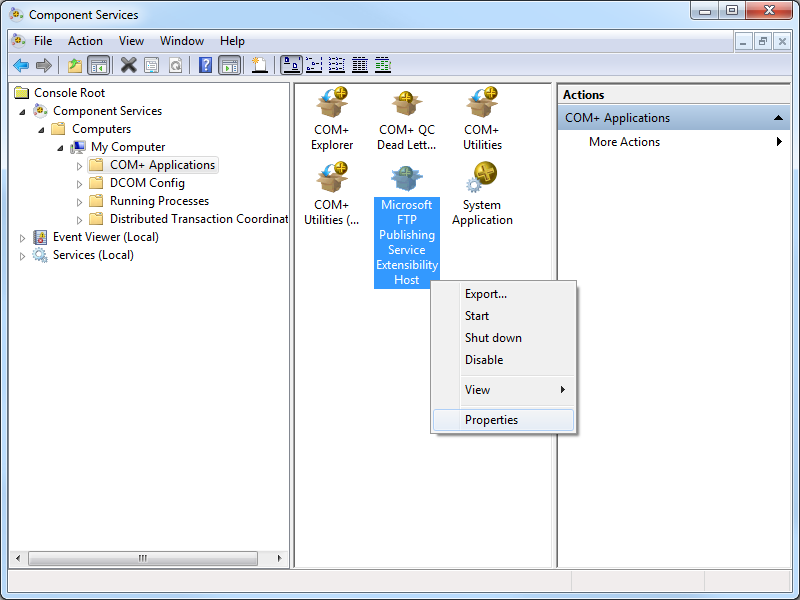
- Click the Identity tab, and then click the This userradio button.
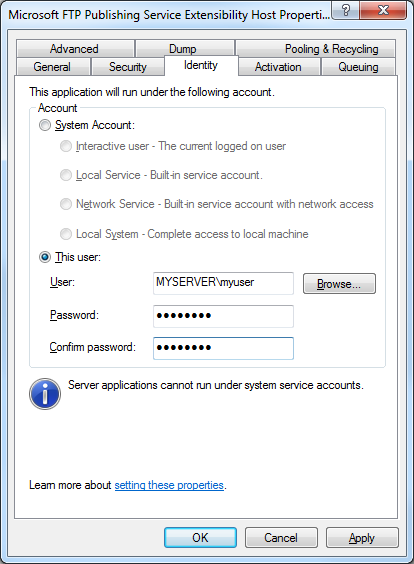
- Enter the credentials for the low-privileged user account that you created earlier, and then click OK.
Once you have done this, you can set permissions for this account whenever you need to specify permissions for situations like I described earlier.
Personally, I prefer to change the identity of the FTP 7 extensibility process instead of granting NETWORK SERVICE more permissions than it probably needs.
Note: This blog was originally posted at http://blogs.msdn.com/robert_mcmurray/
FTP Clients - Recap
16 November 2011 • by Bob • FTP
Having written 10 blog posts in my series about FTP clients, I decided that it might be a good idea to recap some of the information that I have presented thus far. With that in mind, here is a quick recap of the entire series to date:
- Part 1: Web Browser Support
- Part 2: Explicit FTPS versus Implicit FTPS
- Part 3: Creating a Global Listener FTP Site
- Part 4: FileZilla
- Part 5: MOVEit Freely Command-Line Secure FTP Client
- Part 6: Core FTP LE
- Part 7: Kermit FTP Client
- Part 8: SmartFTP Client
- Part 9: Expression Web 4
- Part 10: FTP Voyager
What I'd like to do in the rest of this blog is recap the scorecard information for the FTP clients that I've looked at. With one exception: I'm going to skip the information that I included about the FTP experience for various web browsers, which I discussed in Part 1 of this blog series, but only because web browsers aren't supposed to be first-class FTP clients.
That being said, I'm presenting the information for the remaining FTP clients that I have reviewed in alphabetical order, which is not necessarily by order of preference. ;-]
Core FTP LE 2.1
Original Blog Post: FTP Clients - Part 6: Core FTP LE
| Client Name | Directory Browsing | Explicit FTPS | Implicit FTPS | Virtual Hosts | True HOSTs | Site Manager | Extensibility |
|---|---|---|---|---|---|---|---|
| Core FTP LE 2.1 | Rich | Yes | Yes | Yes | Partial1 | Yes | No |
Footnotes:
- Core FTP can support true FTP HOSTs by configuring pre-login commands in the Site Manager.
Expression Web 4
Original Blog Post: FTP Clients - Part 9: Expression Web 4
| Client Name | Directory Browsing | Explicit FTPS | Implicit FTPS | Virtual Hosts | True HOSTs | Site Manager | Extensibility |
|---|---|---|---|---|---|---|---|
| Expression Web 4 | Rich | Yes | Yes | Yes1 | No2 | Partial3 | Yes |
Footnotes:
- EW4 supports virtual hosts, but some earlier versions of Expression Web did not.
- EW4 has no way to send a HOST command, so true FTP HOSTs are not supported.
- EW4 has only basic Site Manager functionality; it lacks most of the features that are available in many of the GUI-based FTP clients.
FileZilla 3.1.6
Original Blog Post: FTP Clients - Part 4: FileZilla
| Client Name | Directory Browsing | Explicit FTPS | Implicit FTPS | Virtual Hosts | True HOSTs | Site Manager | Extensibility |
|---|---|---|---|---|---|---|---|
| FileZilla 3.1.61 | Rich | Yes | Yes | Yes | No2 | Yes | Yes3 |
Footnotes:
- My original post was for FileZilla 3.1.6; I have upgraded to 3.5.1 since then, but there are no changes as far as the information in my blog was concerned.
- FileZilla has no way to send a HOST command, so true FTP HOSTs are not supported.
- FileZilla is an Open Source project, so you can modify the source and recompile the application; see http://filezilla-project.org/ for more information.
FTP Voyager
Original Blog Post: FTP Clients - Part 10: FTP Voyager
| Client Name | Directory Browsing | Explicit FTPS | Implicit FTPS | Virtual Hosts | True HOSTs | Site Manager | Extensibility |
|---|---|---|---|---|---|---|---|
| FTP Voyager | Rich | Yes | Yes | Yes | Yes1 | Yes | Yes |
Footnotes:
- FTP Voyager fully supports the FTP HOST command, and is enabled by default for new connections.
Kermit FTP Client 2.1.3
Original Blog Post: FTP Clients - Part 7: Kermit FTP Client
| Client Name | Directory Browsing | Explicit FTPS | Implicit FTPS | Virtual Hosts | True HOSTs | Site Manager | Extensibility |
|---|---|---|---|---|---|---|---|
| Kermit FTP Client 2.1.3 | No | Yes | No | Yes | Partial1 | Yes | Yes |
Footnotes:
- True FTP HOSTs can be implemented by using Kermit's "ftp quote HOST ftp.example.com" syntax.
MOVEit Freely 5.0.0.0
Original Blog Post: FTP Clients - Part 5: MOVEit Freely Command-Line Secure FTP Client
| Client Name | Directory Browsing | Explicit FTPS | Implicit FTPS | Virtual Hosts | True HOSTs | Site Manager | Extensibility |
|---|---|---|---|---|---|---|---|
| MOVEit Freely 5.0.0.0 | n/a | Yes | Yes | Yes | Partial1 | No | No |
Footnotes:
- True FTP HOSTs can be implemented by using MOVEit Freely's "quote HOST ftp.example.com" syntax.
SmartFTP Ultimate 4.0
Original Blog Post: FTP Clients - Part 8: SmartFTP Client
| Client Name | Directory Browsing | Explicit FTPS | Implicit FTPS | Virtual Hosts | True HOSTs | Site Manager | Extensibility |
|---|---|---|---|---|---|---|---|
| SmartFTP Ultimate 4.0 | Rich | Yes | Yes | Yes | Yes1 | Yes | Yes |
Footnotes:
- SmartFTP fully supports the FTP HOST command, but you need to configure the SmartFTP Client to send the FEAT command before logging in.
That wraps it up for my recap of the FTP clients that I've reviewed so far; but rest assured, I have a few more FTP clients that I'm waiting to review.
;-]
Note: This blog was originally posted at http://blogs.msdn.com/robert_mcmurray/
The Geek's Guide to Weight Loss
08 November 2011 • by Bob • General
I've had a lot of questions from a lot of people over the past few months about my extreme weight loss this year, so I thought that I'd post a few words to explain how I accomplished that. To put things in perspective, between the start of January, 2011, and the end of June, 2011, I lost 50 pounds (22.7kg). What's more, I've kept the weight off for an additional five months.
Here's the story behind all of that.
Falling Apart (or Bursting at the Seams)
First of all, I knew that I was really overweight.
In December of 2010 my weight reached 210 pounds. As I had watched my weight grow over the years, I had a series of "superhero" names that I called myself:
- First I was "Porky Boy."
- Next, I was "Fat Man."
- Later, I was "The Obese Avenger."
- I was rapidly growing into "The Morbid Marauder."
I made all the usual comments at my own expense:
- "I'm in shape - round is a shape."
- "I have six pack abs - I'm just keeping my six pack insulated."
- "I'm watching my weight. It keeps going up, but I'm watching it go up."
I went into something of a denial phase - I started buying my pants from one particular store, because their brand of jeans were actually larger than their advertised size. So I felt better about the fact that I was wearing jeans that were advertised as size 36, when I was really wearing size 38 or larger. Even then I had a serious "muffin top" that would hang over the top of my jeans. I never tucked in my shirt in order to help disguise my condition.
I knew things were bad when a cab driver in Iquitos, Peru, charged an extra fare for my wife and me because he said that we were too fat. (Actually, he didn't say it, he pointed at me and gestured like I was a balloon inflating.)
But all joking aside, I knew that I was in trouble because my blood pressure had elevated to 170/120, which is dangerously high. (120/80 is normal.) I decided to start exercising, and in early January, 2011, I had barely made it 15 minutes into a workout before I thought that I was going to have a stroke. That's when I realized that I needed a doctor to help me get started.
With this in mind, I took a week off for vacation, and I spent most of that week visiting doctors. I saw a general practitioner who put me on medicine to control my blood pressure. I also saw a neurologist because of my frequent headaches, which were actually chronic migraines. (Undoubtedly due to the blood pressure.) I saw a bunch of other doctors for a variety of additional medical symptoms that I was experiencing, but for the sake of expediency I'll spare you the details.
To make a long story short, it seemed like I was falling apart.
Exercising and Counting Calories
Within a few days, the blood pressure medicine did the trick; I could keep my blood pressure low and complete a workout. For exercise, I bought a treadmill from NordicTrack that connected to www.ifit.com, which allowed me to track the distances that I walked each day. (Hey - if you're a geek, it shows up everywhere.) I bought several series of documentaries on DVD from the History Channel and the Discovery Channel, and I would watch those documentaries while I walked for an hour or so.
I also created a measured walking path through buildings 16, 17, and 18 on Microsoft's main campus; these buildings are connected by glass-covered walkways, so I could still walk when the weather was nasty outside. My walking trail was around three-quarters of a mile long, and it took me about 15 minutes to walk it. It's interesting, because I had never noticed before how many people put out cookies and candies in the hallways. I could ignore all of it - but it's kind of funny that I hadn't paid much attention before.
I have to stress that I did not do a lot of exercise to lose the weight - I mainly started counting the calories for everything that I ate, and I tracked those calories diligently. (I'll explain more about that later.)
My general method of calorie counting was to calculate my Resting Metabolic Rate (RMR), then I would subtract 1,000 calories from that. Whatever was left was the calorie count that I was allowed to eat for the rest of the day.
Here's what that looks like:
There are lots of websites that will help you find the calories for meals, although I liked http://www.livestrong.com/myplate/ the best. I also created a OneNote file that I could read on my SkyDrive and through the Office application on Windows Phone 7 where I listed the calories for the foods that I eat the most; this made it easier to keep track.
It got to the point where I would say to myself, "I really want to eat those M&M's, but I'll have to work out later to burn off those calories." I also learned to browse to a restaurant's website before going out to dinner and picking my meal by calculating the calories ahead of time. In order to help cut down on craving, I stocked my desk with a bunch of 90-calorie snack bars. Those or a bowl of oatmeal became my daily breakfast, and in between my reduced-size meals I would have a snack bar.
I should stress that I did not give up the foods that I like - it may be healthier to do so, but I don't think that's sustainable for some people. (That includes me.) I would still have pizza, or a Qdoba burrito, or a burger from Five Guys; but I would simply have less of everything. If I had a burger somewhere, I'd skip the fries. I'd only have a couple slices of pizza, instead of eating the whole pizza. Keeping the weight off is about sustainability - and eating food that I like in moderation works for me.
I should also point out that at no time was I actually hungry during my weight loss period; that's where the snack bars paid off. Instead of being famished when lunch or dinner rolled around, I could get by with a simple meal of 300 or 400 calories and be satisfied with that.
As long as I stuck faithfully to counting my caloric intake on a daily basis, my weight and the inches around my waistline started to recede.
Losing Weight (while Undoing Years of Abuse)
After five weeks my weight had dropped 20 pounds; my pants were fitting a lot looser, and a few people started to take notice. This was fuel for my self-motivation; the fact that someone could actually see that I was losing weight was great, and it made everything worth the effort. Of course, I still weighed 190 pounds, which was 25 pounds overweight, so any elation was short-lived.
As an added bonus, my weight had dropped so much that I no longer needed the medicine to control my blood pressure. In fact, the medicine was making my blood pressure way too low. One day I finished a workout and I felt a little light-headed. So I took my blood pressure, and I discovered that it was 80/60, which is low enough to pass out. (I stopped taking the blood pressure medicine immediately.)
After losing 30 pounds it was kind of cool - I could tell by looking in a mirror that my face was thinner, and more people started mentioning that it looked like I had lost some weight. But I was still faced with the knowledge that even though I had lost 30 pounds - which was significant for only two months' worth of effort - I still weighed 180 pounds, which put me 15 pounds into the "Overweight" weight range.
When I had lost 45 pounds in May, 2011, I hit my initial weight loss goal. This put my Body Mass Index (BMI) at 25, which was the high end of the "normal" range. To celebrate, I took a break from actively losing weight for a couple weeks, and I went into maintenance mode. So for the next month I continued to count my calories, and I simply kept my weight at 165 pounds.
During my brief respite from active weight loss, I had a follow-up appointment with the same doctor with whom I had met in January. He was shocked when he saw me, and he asked me what had happened. I replied that I didn't want high blood pressure, sleep apnea, and heartburn for the rest of my life. More than that, I didn't want to have to worry about a stroke or heart disease. The doctor gave me a clean bill of health, and a couple of weeks later I started losing weight again.
By the end of June or the beginning of July, I had hit my ultimate weight loss goal of losing 50 pounds, and I've kept it off since then. My waistline went down several sizes, so I have had to change my daily wardrobe through several successively-smaller sets of jeans, which was a great feeling.
Here's what my weight loss chart looks like for the year of 2011 (so far):

The After Effects
First and foremost - I feel great. I have no more migraines, I sleep better, my heartburn is gone, my blood pressure is back to normal, and I have lots more energy.
I'm also in much better shape. In fact, my wife and I walked the Leavenworth Half-Marathon in October, 2011; and here is a photo of the two of us crossing the finish line:

I thought that it might be good to show a set of "before and after" photographs, just so you can see the difference that 50 pounds can make:
 |
 |
| December, 2009 | July, 2011 |
(My thanks to Rebecca Calvo for the photos!)
How Anyone Can Lose Weight
A while ago I posted some weight loss information to Facebook in order to answer a few people's questions about my experiences; since I keep my list of friends on Facebook pretty small, I thought that I'd share some of that information here. But I also wanted to make it a little more up-to-date with some additional information.
My secret to weight loss? Microsoft Excel.
Well, it's a little more than that - but it's mostly just counting my calories and making sure that I eat 1,000 calories less per day than my Resting Metabolic Rate (RMR), for which I use Mufflin equation:
- For Men: (10 x w) + (6.25 x h) - (5 x a) + 5
- For Women: (10 x w) + (6.25 x h) - (5 x a) - 161
Where:
- w = weight in kg
- h = height in cm
- a = age
I converted this equation into the following complex Excel formula:
=((10*(B2/2.2))+(6.25*(B3*2.54))-(5*B4)+IF(B1="Male",5,-161))*IF(B5="Extremely Active",1.9,IF(B5="Very Active",1.725,IF(B5="Moderately Active",1.55,IF(B5="Lightly Active",1.375,1.2))))
Where:
- B1 = Male or Female
- B2 = Weight (in pounds)
- B3 = Height (in inches)
- B4 = Age (in years)
- B5 = Activity Level (Sedentary, Lightly Active, Moderately Active, Very Active, Extremely Active)
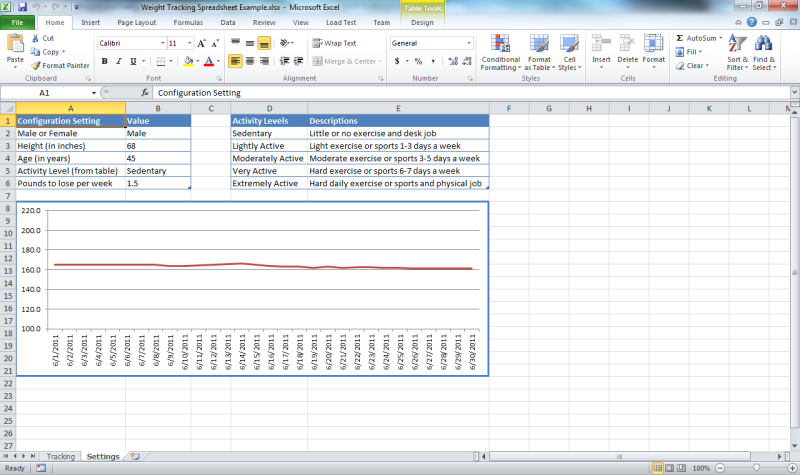
To make things easier, I created the following spreadsheet to help me track my calories:
Geeky Bob's Weight Tracking Spreadsheet
If you want to use it, here's how it works - there are two worksheets in the spreadsheet:
- On the Settings worksheet, you enter your weight, height, age, activity level, and the number of pounds that you want to lose in a week. You should only shoot for a maximum of two pounds a week; anything more is really unsafe, and your body will respond by slowing down your metabolism to conserve resources.
- On the Tracking worksheet, you enter the date and your weight, and the spreadsheet uses this information and the information from the Settings worksheet to calculate your Body Mass Index (BMI) which should be below 25, and your Resting Metabolic Rate (RMR) which is the number of calories that your body burns just to keep you alive.
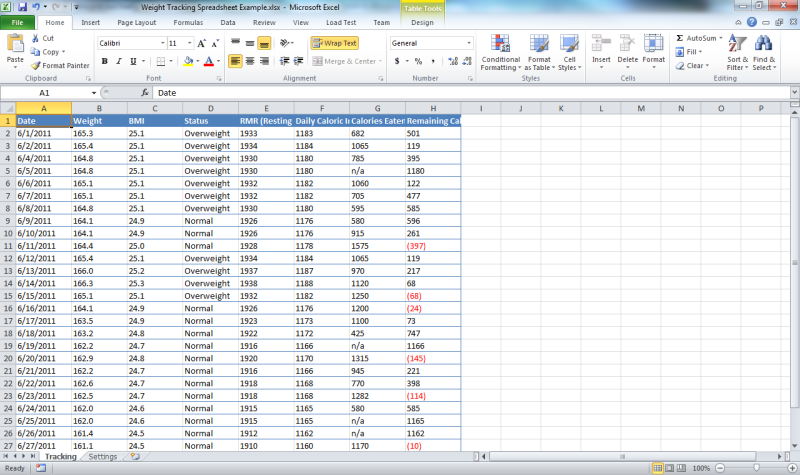
The remaining columns in the spreadsheet will tell you the number of calories that you can eat based on your weight loss goal. As you enter the number of calories that you have eaten (by using a formula like "=100+200+300") the spreadsheet will let you know how many calories that you have remaining for the day. As long as you keep your remaining calories above zero, you should be losing weight.
So there you have it: Microsoft Excel is the Geek's Guide to Weight Loss.
;-]
How to use Managed Code (C#) to create an FTP Home Directory Provider that is based on the Remote Client IP Address
02 November 2011 • by Bob • FTP, IIS
I recently had an interesting scenario that was presented to me by a customer: they had a business requirement where they needed to give the same username and password to a group of people, but they didn't want any two people to be able to see anyone else's files. This seemed like an unusual business requirement to me; the whole point of keeping users separate is one of the reasons why we added user isolation to the FTP service.
With that in mind, my first suggestion was - of course - to rethink their business requirement, assign different usernames and passwords to everyone, and use FTP user isolation. But that wasn't going to work for them; their business requirement for giving out the same username and password could not be avoided. So I said that I would get back to them, and I spent the next few days experimenting with a few ideas.
One of my early ideas that seemed somewhat promising was to write a custom home directory provider that dynamically created unique home directories that were based on the session IDs for the individual FTP sessions, and the provider would use those directories to isolate the users. That seemed like a good idea, but when I analyzed the results I quickly saw that it wasn't going to work; as each user logged in, they would get a new session ID, and they wouldn't see their files from their last session. On top of that, the FTP server would rapidly start to collect a large number of session-based directories, with no garbage collection. So it was back to the drawing board for me.
After some discussions with the customer, we reasoned that the best suggestion for their particular environment was to leverage some of the code that I had written for my session-based home directory provider in order to create home directory provider that dynamically created home directories that are based on the remote IP of the FTP client.
I have to stress, however, that this solution will not work in all situations. For example:
- If multiple FTP clients are accessing your FTP server through the same firewall, their remote IP might appear to be the same.
- If an FTP client is moving between geographic locations, such as traveling with a laptop, then the remote IP address will change, and the client will not see their files from their previous session.
That being said, the customer felt that those limitations were acceptable for their environment, so I created a home directory provider that dynamically created home directories that were based on the remote IP address of their FTP clients. I agree that it's not a perfect solution, but their business requirement made this scenario considerably difficult to work around.
Note: I wrote and tested the steps in this blog using both
In This Blog
- Step 1: Set up the Project Environment
- Step 2: Create the Extensibility Class
- Step 3: Add the Demo Provider to FTP
- Summary
Prerequisites
The following items are required to complete the procedures in this blog:
- The following version of IIS must be installed on your Windows computer, and the Internet Information Services (IIS) Manager must also be installed:
- IIS 7.0 must be installed on Windows Server 2008
- IIS 7.5 must be installed on Windows Server 2008 R2 or Windows 7
- The new FTP 7.5 service must be installed. To install FTP 7.5, follow the instructions in the following topic:
- You must have FTP publishing enabled for a site. To create a new FTP site, follow the instructions in the following topic:
- Set the content permissions to allow access for the COM+ process identity that handles extensibility:
- Open a command prompt.
- Type the following command:
ICACLS "%SystemDrive%\inetpub\ftproot" /Grant "Network Service":M /T
Where "%SystemDrive%\inetpub\ftproot" is the home directory for your FTP site. - Close the command prompt.
Step 1: Set up the Project Environment
In this step, you will create a project in
- Open Visual Studio 2008 or Visual Studio 2010.
- Click the File menu, then New, then Project.
- In the New Projectdialog box:
- Choose Visual C# as the project type.
- Choose Class Library as the template.
- Type FtpRemoteIPHomeDirectory as the name of the project.
- Click OK.
- When the project opens, add a reference path to the FTP extensibility library:
- Click Project, and then click FtpRemoteIPHomeDirectory Properties.
- Click the Reference Paths tab.
- Enter the path to the FTP extensibility assembly for your version of Windows, where C: is your operating system drive.
- For Windows Server 2008 and Windows Vista:
- C:\Windows\assembly\GAC_MSIL\Microsoft.Web.FtpServer\7.5.0.0__31bf3856ad364e35
- For 32-bit Windows 7 and Windows Server 2008 R2:
- C:\Program Files\Reference Assemblies\Microsoft\IIS
- For 64-bit Windows 7 and Windows Server 2008 R2:
- C:\Program Files (x86)\Reference Assemblies\Microsoft\IIS
- For Windows Server 2008 and Windows Vista:
- Click Add Folder.
- Add a strong name key to the project:
- Click Project, and then click FtpRemoteIPHomeDirectory Properties.
- Click the Signing tab.
- Check the Sign the assembly check box.
- Choose <New...> from the strong key name drop-down box.
- Enter FtpRemoteIPHomeDirectoryKey for the key file name.
- If desired, enter a password for the key file; otherwise, clear the Protect my key file with a password check box.
- Click OK.
- Note: FTP 7.5 Extensibility does not support the .NET Framework 4.0; if you are using Visual Studio 2010, or you have changed your default framework version, you may need to change the framework version for this project. To do so, use the following steps:
- Click Project, and then click FtpRemoteIPHomeDirectory Properties.
- Click the Application tab.
- Choose .NET Framework 3.5 in the Target framework drop-down menu.
- Save, close, and re-open the project.
- Optional: You can add a custom build event to add the DLL automatically to the Global Assembly Cache (GAC) on your development computer:
- Click Project, and then click FtpRemoteIPHomeDirectory Properties.
- Click the Build Events tab.
- Enter the appropriate commands in the Post-build event command linedialog box, depending on your version of Visual Studio:
- If you are using Visual Studio 2010:
net stop ftpsvc
call "%VS100COMNTOOLS%\vsvars32.bat">null
gacutil.exe /if "$(TargetPath)"
net start ftpsvc - If you are using Visual Studio 2008:
net stop ftpsvc
call "%VS90COMNTOOLS%\vsvars32.bat">null
gacutil.exe /if "$(TargetPath)"
net start ftpsvc
- If you are using Visual Studio 2010:
- Save the project.
Step 2: Create the Extensibility Class
In this step, you will implement the extensibility interfaces for the demo provider.
- Add the necessary references to the project:
- Click Project, and then click Add Reference...
- On the .NET tab, click Microsoft.Web.FtpServer.
- Click OK.
- Add the code for the authentication class:
- In Solution Explorer, double-click the Class1.cs file.
- Remove the existing code.
- Paste the following code into the editor:
using System;
using System.Collections.Generic;
using System.Collections.Specialized;
using System.IO;
using Microsoft.Web.FtpServer;

public class FtpRemoteIPHomeDirectory :
    BaseProvider,
    IFtpHomeDirectoryProvider,
    IFtpLogProvider
{
    // Create a dictionary object that will contain
    // session IDs and remote IP addresses.
    private static Dictionary<string, string> _sessionList = null;

    // Store the path to the default FTP folder.
    private static string _defaultDirectory = string.Empty;

    // Override the default initialization method.
    protected override void Initialize(StringDictionary config)
    {
        // Test if the session dictionary has been created.
        if (_sessionList == null)
        {
            // Create the session dictionary.
            _sessionList = new Dictionary<string, string>();
        }
        // Retrieve the default directory path from configuration.
        _defaultDirectory = config["defaultDirectory"];
        // Test for the default home directory (Required).
        if (string.IsNullOrEmpty(_defaultDirectory))
        {
            throw new ArgumentException(
              "Missing default directory path in configuration.");
        }
    }

    // Define the home directory provider method.
    string IFtpHomeDirectoryProvider.GetUserHomeDirectoryData(
        string sessionId,
        string siteName,
        string userName)
    {
        // Create a string with the folder name.
        string _sessionDirectory = String.Format(
            @"{0}\{1}", _defaultDirectory,
            _sessionList[sessionId]);
        try
        {
            // Test if the folder already exists.
            if (!Directory.Exists(_sessionDirectory))
            {
                // Create the physical folder. Note: NETWORK SERVICE
                // needs write permissions to the default folder in
                // order to create each remote IP's home directory.
                Directory.CreateDirectory(_sessionDirectory);
            }
        }
        catch (Exception ex)
        {
            throw ex;
        }
        // Return the path to the session folder.
        return _sessionDirectory;
    }
    // Define the log provider method.
    public void Log(FtpLogEntry logEntry)
    {
        // Test if the USER command was entered.
        if (logEntry.Command.Equals(
            "USER",
            StringComparison.InvariantCultureIgnoreCase))
        {
            // Reformat the remote IP address.
            string _remoteIp = logEntry.RemoteIPAddress
                .Replace(':', '-')
                .Replace('.', '-');
            // Add the remote IP address to the session dictionary.
            _sessionList.Add(logEntry.SessionId, _remoteIp);
        }
        // Test if the command channel was closed (end of session).
        if (logEntry.Command.Equals(
            "CommandChannelClosed",
            StringComparison.InvariantCultureIgnoreCase))
        {
            // Remove the closed session from the dictionary.
            _sessionList.Remove(logEntry.SessionId);
        }
    }
}
- Save and compile the project.
Note: If you did not use the optional steps to register the assemblies in the GAC, you will need to manually copy the assemblies to your IIS 7 computer and add the assemblies to the GAC using the Gacutil.exe tool. For more information, see the following topic on the Microsoft MSDN Web site:
Step 3: Add the Demo Provider to FTP
In this step, you will add your provider to the global list of custom providers for your FTP service, configure your provider's settings, and enable your provider for an FTP site.
Adding your Provider to FTP
- Determine the assembly information for your extensibility provider:
- In Windows Explorer, open your "C:\Windows\assembly" path, where C: is your operating system drive.
- Locate the FtpRemoteIPHomeDirectory assembly.
- Right-click the assembly, and then click Properties.
- Copy the Culture value; for example: Neutral.
- Copy the Version number; for example: 1.0.0.0.
- Copy the Public Key Token value; for example: 426f62526f636b73.
- Click Cancel.
- Add the extensibility provider to the global list of FTP authentication providers:
- Open the Internet Information Services (IIS) Manager.
- Click your computer name in the Connections pane.
- Double-click FTP Authentication in the main window.
- Click Custom Providers... in the Actions pane.
- Click Register.
- Enter FtpRemoteIPHomeDirectory for the provider Name.
- Click Managed Provider (.NET).
- Enter the assembly information for the extensibility provider using the information that you copied earlier. For example:
FtpRemoteIPHomeDirectory,FtpRemoteIPHomeDirectory,version=1.0.0.0,Culture=neutral,PublicKeyToken=426f62526f636b73 - Click OK.
- Clear the FtpRemoteIPHomeDirectory check box in the providers list.
- Click OK.
Note: If you prefer, you could use the command line to add the provider to FTP by using syntax like the following example:
cd %SystemRoot%\System32\Inetsrv

 appcmd.exe set config -section:system.ftpServer/providerDefinitions /+"[name='FtpRemoteIPHomeDirectory',type='FtpRemoteIPHomeDirectory,FtpRemoteIPHomeDirectory,version=1.0.0.0,Culture=neutral,PublicKeyToken=426f62526f636b73']" /commit:apphost
Configuring your Provider's Settings
At the moment there is no user interface that allows you to configure properties for a custom home directory provider, so you will have to use the following command line:
cd %SystemRoot%\System32\Inetsrv

 appcmd.exe set config -section:system.ftpServer/providerDefinitions /+"activation.[name='FtpRemoteIPHomeDirectory']" /commit:apphost

 appcmd.exe set config -section:system.ftpServer/providerDefinitions /+"activation.[name='FtpRemoteIPHomeDirectory'].[key='defaultDirectory',value='C:\Inetpub\ftproot']" /commit:apphost
Note: The highlighted area contains the value that you need to update with the root directory of your FTP site.
Enabling your Provider for an FTP site
At the moment there is no user interface that allows you to enable a custom home directory provider for an FTP site, so you will have to use the following command line:
cd %SystemRoot%\System32\Inetsrv

 appcmd.exe set config -section:system.applicationHost/sites /+"[name='My FTP Site'].ftpServer.customFeatures.providers.[name='FtpRemoteIPHomeDirectory']" /commit:apphost

 appcmd.exe set config -section:system.applicationHost/sites /"[name='My FTP Site'].ftpServer.userIsolation.mode:Custom" /commit:apphost
Note: The highlighted areas contain the name of the FTP site where you want to enable the custom home directory provider.
Summary
In this blog I showed you how to:
- Create a project in Visual Studio 2010 or Visual Studio 2008 for a custom FTP home directory provider.
- Implement the extensibility interface for custom FTP home directories.
- Add a custom home directory provider to your FTP service.
When users connect to your FTP site, the FTP service will create a directory that is based on their remote IP address, and it will drop their session in the corresponding folder for their remote IP address. They will not be able to change to the root directory, or a directory for a different remote IP address.
For example, if the root directory for your FTP site is "C:\Inetpub\ftproot" and a client connects to your FTP site from 192.168.0.100, the FTP home directory provider will create a folder that is named "C:\Inetpub\ftproot\192-168-0-100", and the FTP client's sessions will be isolated in that directory; the FTP client will not be able to change directory to "C:\Inetpub\ftproot" or the home directory for another remote IP.
Once again, there are limitations to this approach, and I agree that it's not a perfect solution in all scenarios; but this provider works as expected when you have to use the same username and password for all of your FTP clients, and you know that your FTP clients will use unique remote IP addresses.
Note: This blog was originally posted at http://blogs.msdn.com/robert_mcmurray/
FTP Clients - Part 10: FTP Voyager
21 October 2011 • by Bob • FTP
For this installment in my series about FTP Clients, I'd like to take a look at FTP Voyager from Rhino Software. For this blog I used FTP Voyager 15.2.0.17, and it is available from the following URL:
FTP Voyager is a great FTP client that supports a wide array of features and connection options, but I shouldn't get ahead of myself and talk about everything in my introduction. ;-]
 |
| Fig. 1 - FTP Voyager Splash Screen |
At the time of this blog post, FTP Voyager is a for-retail product that is available in two different versions:
- FTP Voyager
- FTP Voyager Secure
You should take a look at the FTP Voyager Versions page for a description of the features that are available in each version.
FTP Voyager Overview
The FTP Voyager user interface is uncluttered, easy to understand, and allows you to customize which panes you want to see displayed.
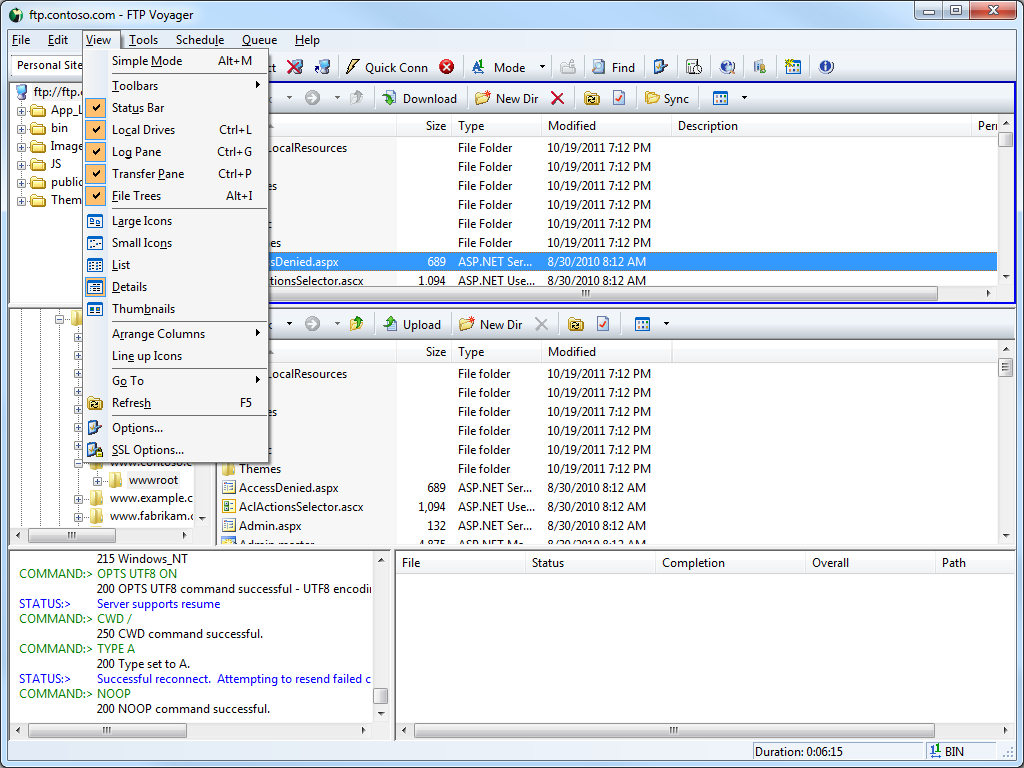 |
| Fig. 2 - FTP Voyager's Default Panes and Options |
If you want a really uncluttered display, FTP Voyager offers a Simple Mode, which narrows down the number of panes that are displayed. (Sometimes this is a handy feature to have.)
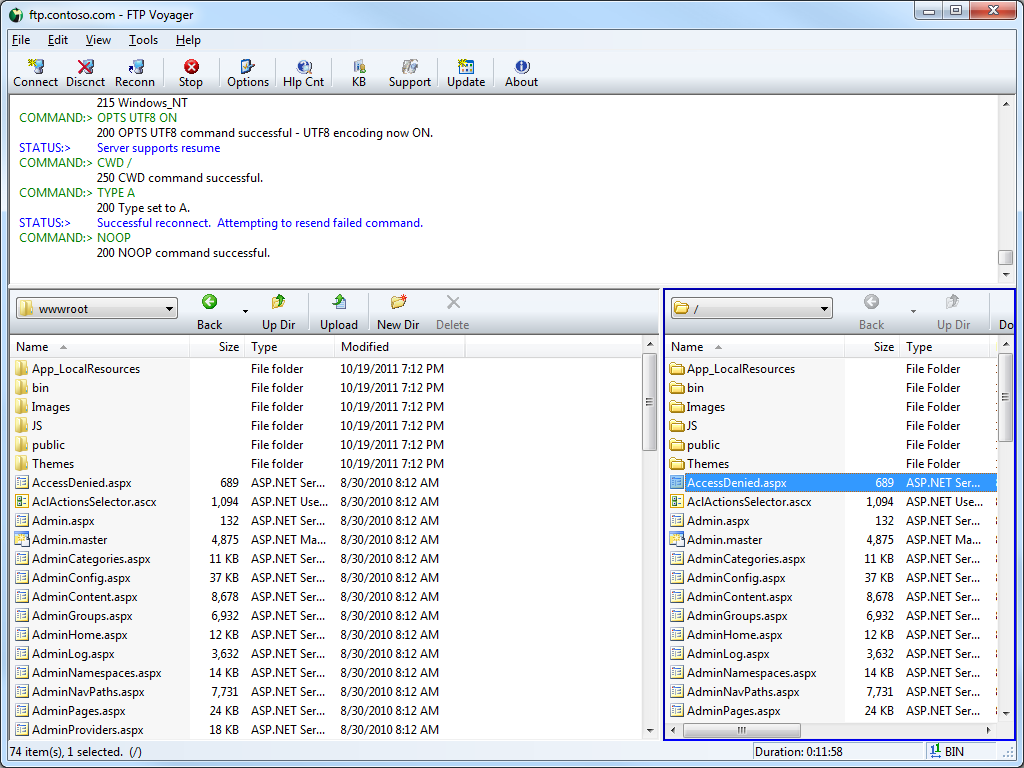 |
| Fig. 3 - FTP Voyager's Simple Mode |
FTP Voyager doesn't have a command-line interface, but it has web browser integration; and it has a really cool scheduler, which allows you to configure FTP jobs to run at scheduled times.
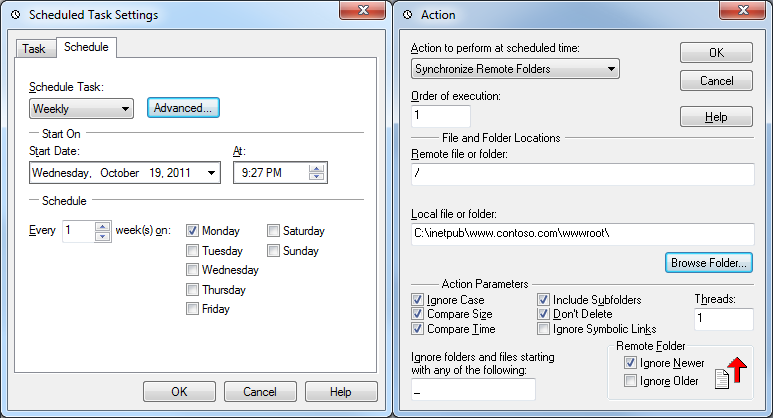 |
| Fig. 4 - FTP Voyager Scheduler's Task Settings |
FTP Voyager also supports sending custom FTP commands, and it has an extensibility interface for creating add-ons. I didn't experiment with creating any add-ons, but you can find details about creating your own add-ons through RhinoSoft's FTP Voyager Add-Ons page.
FTP connections are created and edited through FTP Voyager's Site Profile Manager, which is comparable to the site management features that I have found in many of the better GUI-based FTP clients.
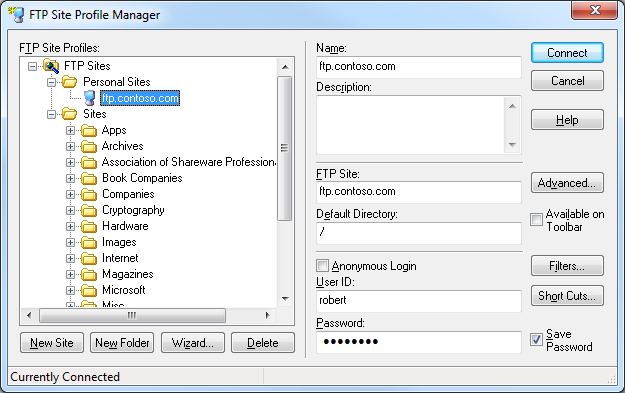 |
| Fig. 5 - FTP Voyager's Site Profile Manager |
That concludes my summary for some of the general features - so now we'll take a look at the FTP7-specific features that I've discussed in my other FTP client blog posts.
Using FTP Voyager with FTP over SSL (FTPS)
FTP Voyager supports both Implicit and Explicit FTPS, so the choice is up to you to decide which method to use. As I have mentioned in my previous blogs, the FTPS method in FTP7 is specified by the port number that you choose when you are creating your bindings. Once again, I realize that I have posted the following information in almost all of my posts in this FTP client series, but it needs to be mentioned that the following rules apply for FTP7 when determining whether you are using Implicit or Explicit FTPS:
- If you enable SSL in FTP7 and you assign the FTP site to port 990, you are using Implicit FTPS.
- If you enable SSL in FTP7 and you assign the FTP site to any port other than port 990, you are using Explicit FTPS.
To configure the security options for a connection in FTP Voyager, you need to open the Advanced Settings dialog for the connection in FTP Voyager's Site Profile Manager.
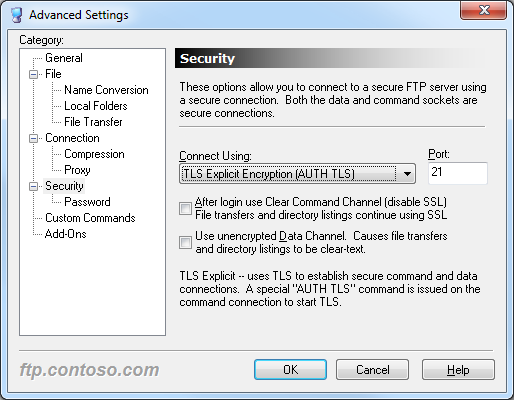 |
| Fig. 6 - FTP Voyager's Security Options |
The additional security options in FTP Voyager's Security Options allow you to configure the SSL environment to match FTP7's Advanced SSL Policy settings.
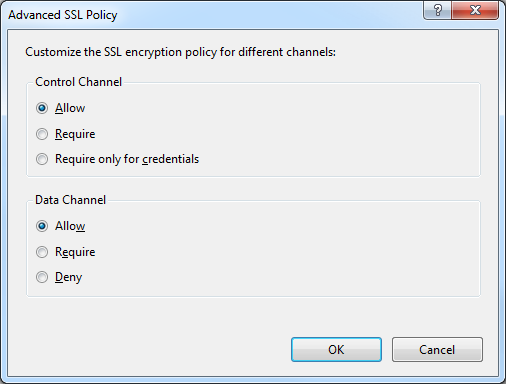 |
| Fig. 7 - FTP7's Advanced SSL Policy Settings |
Note: I was able to use FTP Voyager's FTPS features with FTP7's virtual host names, but I should mention that I had to configure a Global Listener FTP Site in order to get that to work.
Using FTP Voyager with True FTP Hosts
FTP Voyager has built-in for the HOST command, so you can use true FTP host names when using FTP Voyager to connect to FTP7 sites that are configured with host names. This feature is enabled by default, but if you needed to disable it for some reason, that feature can be accessed through FTP Voyager's Advanced Settings dialog.
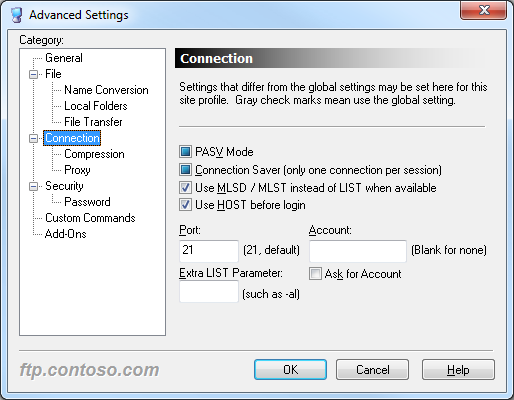 |
| Fig. 7 - FTP Voyager's Advanced Connection Settings |
The following excerpt from the Log Pane of an FTP Voyager session shows the HOST command in action:
STATUS:> |
Connecting to "ftp.contoso.com" on port 21. |
|
220 Microsoft FTP Service |
STATUS:> |
Connected. Logging into the server |
COMMAND:> |
HOST ftp.contoso.com |
|
220 Host accepted. |
COMMAND:> |
USER robert |
|
331 Password required for robert. |
COMMAND:> |
PASS ********** |
|
230 User logged in. |
STATUS:> |
Login successful |
Using FTP Voyager with FTP Virtual Host Names
FTP Voyager's login settings allow you to specify the virtual host name as part of the user credentials by using syntax like "ftp.example.com|username" or "ftp.example.com\username", but since FTP Voyager allows you to use true FTP hosts this is really a moot point. Just the same, there's nothing to stop you from disabling the HOST command for a connection and specifying an FTP virtual host as part of your username, although I'm not sure why you would want to do that.
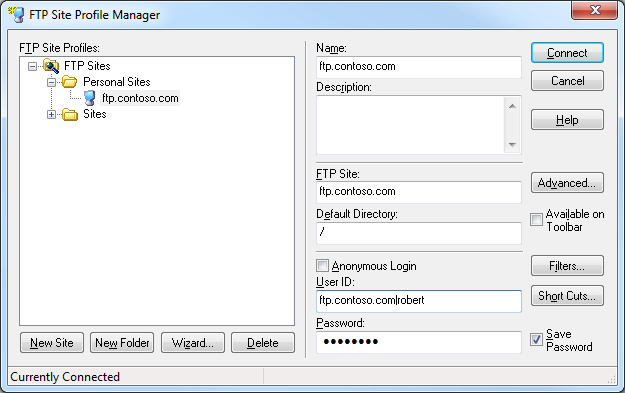 |
| Fig. 9 - Specifying a Virtual Host in FTP Voyager |
Scorecard for FTP Voyager
This concludes our quick look at some of the FTP features that are available with FTP Voyager, and here are the scorecard results:
| Client Name | Directory Browsing | Explicit FTPS | Implicit FTPS | Virtual Hosts | True HOSTs | Site Manager | Extensibility |
|---|---|---|---|---|---|---|---|
| Rich | Y | Y | Y | Y | Y | Y | |
| As noted earlier, FTP Voyager supports the FTP HOST command, and is enabled by default for new connections. | |||||||
In closing, FTP Voyager is a great GUI-based FTP client that has first-class support for all of the features that I have been examining in detail throughout my FTP client blog series. But that being said, I included the following disclaimer in all of my preceding posts, so this post will be no exception: there are a great number of additional features that FTP Voyager provides - but once again I only focused on a few specific topic areas that apply to FTP7. ;-]
Note: This blog was originally posted at http://blogs.msdn.com/robert_mcmurray/
Sending WebDAV Requests in .NET Revisited
18 October 2011 • by Bob • WebDAV
I recently spoke with a great customer in India, and he was experimenting with the code from my Sending WebDAV Requests in .NET blog post. He had a need to send the WebDAV LOCK/UNLOCK commands, so I wrote a quick addition to the code in my original blog post to send those commands, and I thought that I'd share that code in an updated blog post.
Using WebDAV Locks
First of all, you may need to enable WebDAV locks on your server. To do so, follow the instructions in the following walkthrough:
How to Use WebDAV Locks
http://learn.iis.net/page.aspx/596/how-to-use-webdav-locks/
If you were writing a WebDAV client, sending the LOCK/UNLOCK commands would help to avoid two clients attempting to author the same resource. So if your WebDAV client was editing a file named "foo.txt", the flow of events would be something like the following:
- LOCK foo.txt
- GET foo.txt
- [make some changes to foo.txt]
- PUT foo.txt
- UNLOCK foo.txt
Description for the Sample Application
The updated code sample in this blog post shows how to send most of the common WebDAV requests using C# and common .NET libraries. In addition to adding the LOCK/UNLOCK commands to this version, I also changed the sample files to upload/download Classic ASP pages instead of text files; I did this so you can see that the WebDAV requests are correctly accessing the source code of the ASP pages instead of the translated output.
Having said that, I need to mention once again that I create more objects than are necessary for each section of the sample, which creates several intentional redundancies; I did this because I wanted to make each section somewhat self-sufficient, which helps you to copy and paste a little easier. I present the WebDAV methods the in the following order:
| WebDAV Method | Notes |
|---|---|
| PUT | This section of the sample writes a string as a text file to the destination server as "foobar1.asp". Sending a raw string is only one way of writing data to the server, in a more common scenario you would probably open a file using a steam object and write it to the destination. One thing to note in this section of the sample is the addition of the "Overwrite" header, which specifies that the destination file can be overwritten. |
| LOCK | This section of the sample sends a WebDAV request to lock the "foobar1.asp" before downloading it with a GET request. |
| GET | This section of the sample sends a WebDAV-specific form of the HTTP GET method to retrieve the source code for the destination URL. This is accomplished by sending the "Translate: F" header and value, which instructs IIS to send the source code instead of the processed URL. In this specific sample I am using Classic ASP, but if the requests were for ASP.NET or PHP files you would also need to specify the "Translate: F" header/value pair. |
| PUT | This section of the sample sends an updated version of the "foobar1.asp" script to the server, which overwrites the original file. The purpose of this PUT command is to simulate creating a WebDAV client that can update files on the server. |
| GET | This section of the sample retrieves the updated version of the "foobar1.asp" script from the server, just to show that the updated version was saved successfully. |
| UNLOCK | This section of the sample uses the lock token from the earlier LOCK request to unlock the "foobar1.asp" |
| COPY | This section of the sample copies the file from "foobar1.asp" to "foobar2.asp", and uses the "Overwrite" header to specify that the destination file can be overwritten. One thing to note in this section of the sample is the addition of the "Destination" header, which obviously specifies the destination URL. The value for this header can be a relative path or an FQDN, but it may not be an FQDN to a different server. |
| MOVE | This section of the sample moves the file from "foobar2.asp" to "foobar1.asp", thereby replacing the original uploaded file. As with the previous two sections of the sample, this section of the sample uses the "Overwrite" and "Destination" headers. |
| DELETE | This section of the sample deletes the original file, thereby removing the sample file from the destination server. |
| MKCOL | This section of the sample creates a folder named "foobar3" on the destination server; as far as WebDAV on IIS is concerned, the MKCOL method is a lot like the old DOS MKDIR command. |
| DELETE | This section of the sample deletes the folder from the destination server. |
Source Code for the Sample Application
Here is the source code for the updated sample application:
using System;
using System.Net;
using System.IO;
using System.Text;

class WebDavTest
{
  static void Main(string[] args)
  {
    try
    {
      // Define the URLs.
      string szURL1 = @"http://localhost/foobar1.asp";
      string szURL2 = @"http://localhost/foobar2.asp";
      string szURL3 = @"http://localhost/foobar3";

      // Some sample code to put in an ASP file.
      string szAspCode1 = @"<%=Year()%>";
      string szAspCode2 = @"<%=Time()%>";

      // Some XML to put in a lock request.
      string szLockXml = "<?xml version=\"1.0\" encoding=\"utf-8\" ?>" +
        "<D:lockinfo xmlns:D='DAV:'>" +
        "<D:lockscope><D:exclusive/></D:lockscope>" +
        "<D:locktype><D:write/></D:locktype>" +
        "<D:owner><D:href>mailto:someone@example.com</D:href></D:owner>" +
        "</D:lockinfo>";

      // Define username, password, and lock token strings.
      string szUsername  = @"username";
      string szPassword  = @"password";
      string szLockToken = null;

      // --------------- PUT REQUEST #1 --------------- //

      // Create an HTTP request for the URL.
      HttpWebRequest httpPutRequest1 =
         (HttpWebRequest)WebRequest.Create(szURL1);

      // Set up new credentials.
      httpPutRequest1.Credentials =
         new NetworkCredential(szUsername, szPassword);

      // Pre-authenticate the request.
      httpPutRequest1.PreAuthenticate = true;

      // Define the HTTP method.
      httpPutRequest1.Method = @"PUT";

      // Specify that overwriting the destination is allowed.
      httpPutRequest1.Headers.Add(@"Overwrite", @"T");

      // Specify the content length.
      httpPutRequest1.ContentLength = szAspCode1.Length;

      // Optional, but allows for larger files.
      httpPutRequest1.SendChunked = true;

      // Retrieve the request stream.
      Stream putRequestStream1 =
         httpPutRequest1.GetRequestStream();

      // Write the string to the destination as text bytes.
      putRequestStream1.Write(
         Encoding.UTF8.GetBytes((string)szAspCode1),
         0, szAspCode1.Length);

      // Close the request stream.
      putRequestStream1.Close();

      // Retrieve the response.
      HttpWebResponse httpPutResponse1 =
         (HttpWebResponse)httpPutRequest1.GetResponse();

      // Write the response status to the console.
      Console.WriteLine(@"PUT Response #1: {0}",
         httpPutResponse1.StatusDescription);

      // --------------- LOCK REQUEST --------------- //

      // Create an HTTP request for the URL.
      HttpWebRequest httpLockRequest =
         (HttpWebRequest)WebRequest.Create(szURL1);

      // Set up new credentials.
      httpLockRequest.Credentials =
         new NetworkCredential(szUsername, szPassword);

      // Pre-authenticate the request.
      httpLockRequest.PreAuthenticate = true;

      // Define the HTTP method.
      httpLockRequest.Method = @"LOCK";

      // Specify the request timeout.
      httpLockRequest.Headers.Add(@"Timeout", "Infinite");

      // Specify the request content type.
      httpLockRequest.ContentType = "text/xml; charset=\"utf-8\"";

      // Retrieve the request stream.
      Stream lockRequestStream =
         httpLockRequest.GetRequestStream();

      // Write the lock XML to the destination.
      lockRequestStream.Write(
         Encoding.UTF8.GetBytes((string)szLockXml),
         0, szLockXml.Length);

      // Close the request stream.
      lockRequestStream.Close();

      // Retrieve the response.
      HttpWebResponse httpLockResponse =
         (HttpWebResponse)httpLockRequest.GetResponse();

      // Retrieve the lock token for the request.
      szLockToken = httpLockResponse.GetResponseHeader("Lock-Token");

      // Write the response status to the console.
      Console.WriteLine(
         @"LOCK Response: {0}",
         httpLockResponse.StatusDescription);
      Console.WriteLine(
         @" LOCK Token: {0}",
         szLockToken);

      // --------------- GET REQUEST #1 --------------- //

      // Create an HTTP request for the URL.
      HttpWebRequest httpGetRequest1 =
         (HttpWebRequest)WebRequest.Create(szURL1);

      // Set up new credentials.
      httpGetRequest1.Credentials =
         new NetworkCredential(szUsername, szPassword);

      // Pre-authenticate the request.
      httpGetRequest1.PreAuthenticate = true;

      // Define the HTTP method.
      httpGetRequest1.Method = @"GET";

      // Specify the request for source code.
      httpGetRequest1.Headers.Add(@"Translate", "F");

      // Retrieve the response.
      HttpWebResponse httpGetResponse1 =
         (HttpWebResponse)httpGetRequest1.GetResponse();

      // Retrieve the response stream.
      Stream getResponseStream1 =
         httpGetResponse1.GetResponseStream();

      // Create a stream reader for the response.
      StreamReader getStreamReader1 =
         new StreamReader(getResponseStream1, Encoding.UTF8);

      // Write the response status to the console.
      Console.WriteLine(
         @"GET Response #1: {0}",
         httpGetResponse1.StatusDescription);
      Console.WriteLine(
         @" Response Length: {0}",
         httpGetResponse1.ContentLength);
      Console.WriteLine(
         @" Response Text: {0}",
         getStreamReader1.ReadToEnd());

      // Close the response streams.
      getStreamReader1.Close();
      getResponseStream1.Close();

      // --------------- PUT REQUEST #2 --------------- //

      // Create an HTTP request for the URL.
      HttpWebRequest httpPutRequest2 =
         (HttpWebRequest)WebRequest.Create(szURL1);

      // Set up new credentials.
      httpPutRequest2.Credentials =
         new NetworkCredential(szUsername, szPassword);

      // Pre-authenticate the request.
      httpPutRequest2.PreAuthenticate = true;

      // Define the HTTP method.
      httpPutRequest2.Method = @"PUT";

      // Specify that overwriting the destination is allowed.
      httpPutRequest2.Headers.Add(@"Overwrite", @"T");

      // Specify the lock token.
      httpPutRequest2.Headers.Add(@"If",
        String.Format(@"({0})",szLockToken));

      // Specify the content length.
      httpPutRequest2.ContentLength = szAspCode1.Length;

      // Optional, but allows for larger files.
      httpPutRequest2.SendChunked = true;

      // Retrieve the request stream.
      Stream putRequestStream2 =
         httpPutRequest2.GetRequestStream();

      // Write the string to the destination as a text file.
      putRequestStream2.Write(
         Encoding.UTF8.GetBytes((string)szAspCode2),
         0, szAspCode1.Length);

      // Close the request stream.
      putRequestStream2.Close();

      // Retrieve the response.
      HttpWebResponse httpPutResponse2 =
         (HttpWebResponse)httpPutRequest2.GetResponse();

      // Write the response status to the console.
      Console.WriteLine(@"PUT Response #2: {0}",
         httpPutResponse2.StatusDescription);

      // --------------- GET REQUEST #2 --------------- //

      // Create an HTTP request for the URL.
      HttpWebRequest httpGetRequest2 =
         (HttpWebRequest)WebRequest.Create(szURL1);

      // Set up new credentials.
      httpGetRequest2.Credentials =
         new NetworkCredential(szUsername, szPassword);

      // Pre-authenticate the request.
      httpGetRequest2.PreAuthenticate = true;

      // Define the HTTP method.
      httpGetRequest2.Method = @"GET";

      // Specify the request for source code.
      httpGetRequest2.Headers.Add(@"Translate", "F");

      // Retrieve the response.
      HttpWebResponse httpGetResponse2 =
         (HttpWebResponse)httpGetRequest2.GetResponse();

      // Retrieve the response stream.
      Stream getResponseStream2 =
         httpGetResponse2.GetResponseStream();

      // Create a stream reader for the response.
      StreamReader getStreamReader2 =
         new StreamReader(getResponseStream2, Encoding.UTF8);

      // Write the response status to the console.
      Console.WriteLine(
         @"GET Response #2: {0}",
         httpGetResponse2.StatusDescription);
      Console.WriteLine(
         @" Response Length: {0}",
         httpGetResponse2.ContentLength);
      Console.WriteLine(
         @" Response Text: {0}",
         getStreamReader2.ReadToEnd());

      // Close the response streams.
      getStreamReader2.Close();
      getResponseStream2.Close();

      // --------------- UNLOCK REQUEST --------------- //

      // Create an HTTP request for the URL.
      HttpWebRequest httpUnlockRequest =
         (HttpWebRequest)WebRequest.Create(szURL1);

      // Set up new credentials.
      httpUnlockRequest.Credentials =
         new NetworkCredential(szUsername, szPassword);

      // Pre-authenticate the request.
      httpUnlockRequest.PreAuthenticate = true;

      // Define the HTTP method.
      httpUnlockRequest.Method = @"UNLOCK";

      // Specify the lock token.
      httpUnlockRequest.Headers.Add(@"Lock-Token", szLockToken);

      // Retrieve the response.
      HttpWebResponse httpUnlockResponse =
         (HttpWebResponse)httpUnlockRequest.GetResponse();

      // Write the response status to the console.
      Console.WriteLine(
         @"UNLOCK Response: {0}",
         httpUnlockResponse.StatusDescription);

      // --------------- COPY REQUEST --------------- //

      // Create an HTTP request for the URL.
      HttpWebRequest httpCopyRequest =
         (HttpWebRequest)WebRequest.Create(szURL1);

      // Set up new credentials.
      httpCopyRequest.Credentials =
         new NetworkCredential(szUsername, szPassword);

      // Pre-authenticate the request.
      httpCopyRequest.PreAuthenticate = true;

      // Define the HTTP method.
      httpCopyRequest.Method = @"COPY";

      // Specify the destination URL.
      httpCopyRequest.Headers.Add(@"Destination", szURL2);

      // Specify that overwriting the destination is allowed.
      httpCopyRequest.Headers.Add(@"Overwrite", @"T");

      // Retrieve the response.
      HttpWebResponse httpCopyResponse =
         (HttpWebResponse)httpCopyRequest.GetResponse();

      // Write the response status to the console.
      Console.WriteLine(@"COPY Response: {0}",
         httpCopyResponse.StatusDescription);

      // --------------- MOVE REQUEST --------------- //

      // Create an HTTP request for the URL.
      HttpWebRequest httpMoveRequest =
         (HttpWebRequest)WebRequest.Create(szURL2);

      // Set up new credentials.
      httpMoveRequest.Credentials =
         new NetworkCredential(szUsername, szPassword);

      // Pre-authenticate the request.
      httpMoveRequest.PreAuthenticate = true;

      // Define the HTTP method.
      httpMoveRequest.Method = @"MOVE";

      // Specify the destination URL.
      httpMoveRequest.Headers.Add(@"Destination", szURL1);

      // Specify that overwriting the destination is allowed.
      httpMoveRequest.Headers.Add(@"Overwrite", @"T");

      // Retrieve the response.
      HttpWebResponse httpMoveResponse =
         (HttpWebResponse)httpMoveRequest.GetResponse();

      // Write the response status to the console.
      Console.WriteLine(@"MOVE Response: {0}",
         httpMoveResponse.StatusDescription);

      // --------------- DELETE FILE REQUEST --------------- //

      // Create an HTTP request for the URL.
      HttpWebRequest httpDeleteFileRequest =
         (HttpWebRequest)WebRequest.Create(szURL1);

      // Set up new credentials.
      httpDeleteFileRequest.Credentials =
         new NetworkCredential(szUsername, szPassword);

      // Pre-authenticate the request.
      httpDeleteFileRequest.PreAuthenticate = true;

      // Define the HTTP method.
      httpDeleteFileRequest.Method = @"DELETE";

      // Retrieve the response.
      HttpWebResponse httpDeleteFileResponse =
         (HttpWebResponse)httpDeleteFileRequest.GetResponse();

      // Write the response status to the console.
      Console.WriteLine(@"DELETE File Response: {0}",
         httpDeleteFileResponse.StatusDescription);

      // --------------- MKCOL REQUEST --------------- //

      // Create an HTTP request for the URL.
      HttpWebRequest httpMkColRequest =
         (HttpWebRequest)WebRequest.Create(szURL3);

      // Set up new credentials.
      httpMkColRequest.Credentials =
         new NetworkCredential(szUsername, szPassword);

      // Pre-authenticate the request.
      httpMkColRequest.PreAuthenticate = true;

      // Define the HTTP method.
      httpMkColRequest.Method = @"MKCOL";

      // Retrieve the response.
      HttpWebResponse httpMkColResponse =
         (HttpWebResponse)httpMkColRequest.GetResponse();

      // Write the response status to the console.
      Console.WriteLine(@"MKCOL Response: {0}",
         httpMkColResponse.StatusDescription);

      // --------------- DELETE FOLDER REQUEST --------------- //

      // Create an HTTP request for the URL.
      HttpWebRequest httpDeleteFolderRequest =
         (HttpWebRequest)WebRequest.Create(szURL3);

      // Set up new credentials.
      httpDeleteFolderRequest.Credentials =
         new NetworkCredential(szUsername, szPassword);

      // Pre-authenticate the request.
      httpDeleteFolderRequest.PreAuthenticate = true;

      // Define the HTTP method.
      httpDeleteFolderRequest.Method = @"DELETE";

      // Retrieve the response.
      HttpWebResponse httpDeleteFolderResponse =
         (HttpWebResponse)httpDeleteFolderRequest.GetResponse();

      // Write the response status to the console.
      Console.WriteLine(@"DELETE Folder Response: {0}",
         httpDeleteFolderResponse.StatusDescription);
    }
    catch (Exception ex)
    {
      Console.WriteLine(ex.Message);
    }
  }
}
Running the Sample Application
When you run the code sample, if there are no errors you should see something like the following output:
If you looked at the IIS logs after running the sample application, you should see entries like the following example:
#Software: Microsoft Internet Information Services 7.5
#Version: 1.0
#Date: 2011-10-18 06:49:07
#Fields: date time s-ip cs-method cs-uri-stem cs-uri-query s-port cs-username c-ip sc-status sc-substatus sc-win32-status
2011-10-18 06:49:07 ::1 PUT /foobar1.asp - 80 - ::1 401 2 5
2011-10-18 06:49:07 ::1 PUT /foobar1.asp - 80 username ::1 201 0 0
2011-10-18 06:49:07 ::1 LOCK /foobar1.asp - 80 username ::1 200 0 0
2011-10-18 06:49:07 ::1 GET /foobar1.asp - 80 username ::1 200 0 0
2011-10-18 06:49:07 ::1 PUT /foobar1.asp - 80 username ::1 204 0 0
2011-10-18 06:49:07 ::1 GET /foobar1.asp - 80 username ::1 200 0 0
2011-10-18 06:49:07 ::1 UNLOCK /foobar1.asp - 80 username ::1 204 0 0
2011-10-18 06:49:07 ::1 COPY /foobar1.asp http://localhost/foobar2.asp 80 username ::1 201 0 0
2011-10-18 06:49:07 ::1 MOVE /foobar2.asp http://localhost/foobar1.asp 80 username ::1 204 0 0
2011-10-18 06:49:07 ::1 DELETE /foobar1.asp - 80 username ::1 200 0 0
2011-10-18 06:49:07 ::1 MKCOL /foobar3 - 80 username ::1 201 0 0
2011-10-18 06:49:07 ::1 DELETE /foobar3 - 80 username ::1 200 0 0
Closing Notes
Since the code sample cleans up after itself, you should not see any files or folders on the destination server when it has completed executing. To see the files and folders that are actually created and deleted on the destination server, you would need to step through the code in a debugger.
This updated version does not include examples of the WebDAV PROPPATCH/PROPFIND methods in this sample for the same reason that I did not do so in my previous blog - those commands require processing the XML responses, and that is outside the scope of what I wanted to do with this sample.
I hope this helps!
Note: This blog was originally posted at http://blogs.msdn.com/robert_mcmurray/
How to create an HTML Application to configure your WebDAV Redirector settings
07 October 2011 • by Bob • IIS, Scripting, WebDAV
I've mentioned in previous blog posts that I use the Windows WebDAV Redirector a lot. (And believe me, I use it a lot.) Having said that, there are a lot of registry settings that control how the Windows WebDAV Redirector operates, and I tend to tweak those settings fairly often.
I documented all of those registry settings in my Using the WebDAV Redirector walkthrough, but unfortunately there isn't a built-in interface for managing the settings. With that in mind, I decided to write my own user interface.
I knew that it would be pretty simple to create a basic Windows Form application that does everything, but my trouble is that I would want to share the code in a blog, and the steps create a Windows application are probably more than I would want to write in such a short space. So I decided to reach into my scripting past and create an HTML Application for Windows that configures all of the Windows WebDAV Redirector settings.
It should be noted, like everything else these days, that this code is provided as-is. ;-]
Using the HTML Application
When you run the application, it will present you with the following user interface, which allows you to configure most of the useful Windows WebDAV Redirector settings:

Creating the HTML Application
To create this HTML Application, save the following HTMLA code as "WebDAV Redirector Settings.hta" to your computer, and then double-click its icon to run the application.
<html> <head> <title>WebDAV Redirector Settings</title> <HTA:APPLICATION APPLICATIONNAME="WebDAV Redirector Settings" ID="WebDAV Redirector Settings" VERSION="1.0" BORDER="dialog" BORDERSTYLE="static" INNERBORDER="no" SYSMENU="no" MAXIMIZEBUTTON="no" MINIMIZEBUTTON="no" SCROLL="no" SCROLLFLAT="yes" SINGLEINSTANCE="yes" CONTEXTMENU="no" SELECTION="no"/> <script language="vbscript"> ' ---------------------------------------- ' Start of main code section. ' ---------------------------------------- Option Explicit Const intDialogWidth = 700 Const intDialogHeight = 620 Const HKEY_LOCAL_MACHINE = &H80000002 Const strWebClientKeyPath = "SYSTEM\CurrentControlSet\Services\WebClient\Parameters" Const strLuaKeyPath = "Software\Microsoft\Windows\CurrentVersion\Policies\System" Dim objRegistry Dim blnHasChanges ' ---------------------------------------- ' Start the application. ' ---------------------------------------- Sub Window_OnLoad On Error Resume Next ' Set up the UI dimensions. Self.resizeTo intDialogWidth,intDialogHeight Self.moveTo (Screen.AvailWidth - intDialogWidth) / 2, _ (Screen.AvailHeight - intDialogHeight) / 2 ' Retrieve the current settings. Document.all.TheBody.ClassName = "hide" Set objRegistry = GetObject( _ "winmgmts:{impersonationLevel=impersonate}!\\.\root\default:StdRegProv") Call CheckForLUA() Call GetValues() Document.All.TheBody.ClassName = "show" End Sub ' ---------------------------------------- ' Check for User Access Control ' ---------------------------------------- Sub CheckForLUA() If GetRegistryDWORD(strLuaKeyPath,"EnableLUA",1)<> 0 Then MsgBox "User Access Control (UAC) is enabled on this computer." & _ vbCrLf & vbCrLf & "UAC must be disabled in order to edit " & _ "the registry and restart the service for the WebDAV Redirector. " & _ "Please disable UAC before running this application again. " & _ "This application will now exit.", _ vbCritical, "User Access Control" Self.close End If End Sub ' ---------------------------------------- ' Exit the application. ' ---------------------------------------- Sub ExitApplication() If blnHasChanges = False Then If MsgBox("Are you sure you want to exit?", _ vbQuestion Or vbYesNo Or vbDefaultButton2, _ "Exit Application") = vbNo Then Exit Sub End If Else Dim intRetVal intRetVal = MsgBox("You have unsaved changes. " & _ "Do you want to save them before you exit?", _ vbQuestion Or vbYesNoCancel Or vbDefaultButton1, _ "Exit Application") If intRetVal = vbYes Then Call SetValues() ElseIf intRetVal = vbCancel Then Exit Sub End If End If Self.close End Sub ' ---------------------------------------- ' Flag the application as having changes. ' ---------------------------------------- Sub FlagChanges() blnHasChanges = True End Sub ' ---------------------------------------- ' Retrieve the settings from the registry. ' ---------------------------------------- Sub GetValues() On Error Resume Next Dim tmpCount,tmpArray,tmpString ' Get the radio button values Call SetRadioValue(Document.all.BasicAuthLevel, _ GetRegistryDWORD(strWebClientKeyPath, _ "BasicAuthLevel",1)) Call SetRadioValue(Document.all.SupportLocking, _ GetRegistryDWORD(strWebClientKeyPath, _ "SupportLocking",1)) ' Get the text box values Document.all.InternetServerTimeoutInSec.Value = _ GetRegistryDWORD(strWebClientKeyPath, _ "InternetServerTimeoutInSec",30) Document.all.FileAttributesLimitInBytes.Value = _ GetRegistryDWORD(strWebClientKeyPath, _ "FileAttributesLimitInBytes",1000000) Document.all.FileSizeLimitInBytes.Value = _ GetRegistryDWORD(strWebClientKeyPath, _ "FileSizeLimitInBytes",50000000) Document.all.LocalServerTimeoutInSec.Value = _ GetRegistryDWORD(strWebClientKeyPath, _ "LocalServerTimeoutInSec",15) Document.all.SendReceiveTimeoutInSec.Value = _ GetRegistryDWORD(strWebClientKeyPath, _ "SendReceiveTimeoutInSec",60) Document.all.ServerNotFoundCacheLifeTimeInSec.Value = _ GetRegistryDWORD(strWebClientKeyPath, _ "ServerNotFoundCacheLifeTimeInSec",60) ' Get the text area values tmpArray = GetRegistryMULTISZ( _ strWebClientKeyPath,"AuthForwardServerList") For tmpCount = 0 To UBound(tmpArray) tmpString = tmpString & tmpArray(tmpCount) & vbTab Next If Len(tmpString)>0 Then Document.all.AuthForwardServerList.Value = _ Replace(Left(tmpString,Len(tmpString)-1),vbTab,vbCrLf) End If blnHasChanges = False End Sub ' ---------------------------------------- ' Save the settings in the registry. ' ---------------------------------------- Sub SetValues() On Error Resume Next ' Set the radio button values Call SetRegistryDWORD( _ strWebClientKeyPath, _ "BasicAuthLevel", _ GetRadioValue(Document.all.BasicAuthLevel)) Call SetRegistryDWORD( _ strWebClientKeyPath, _ "SupportLocking", _ GetRadioValue(Document.all.SupportLocking)) ' Set the text box values Call SetRegistryDWORD( _ strWebClientKeyPath, _ "InternetServerTimeoutInSec", _ Document.all.InternetServerTimeoutInSec.Value) Call SetRegistryDWORD( _ strWebClientKeyPath, _ "FileAttributesLimitInBytes", _ Document.all.FileAttributesLimitInBytes.Value) Call SetRegistryDWORD( _ strWebClientKeyPath, _ "FileSizeLimitInBytes", _ Document.all.FileSizeLimitInBytes.Value) Call SetRegistryDWORD( _ strWebClientKeyPath, _ "LocalServerTimeoutInSec", _ Document.all.LocalServerTimeoutInSec.Value) Call SetRegistryDWORD( _ strWebClientKeyPath, _ "SendReceiveTimeoutInSec", _ Document.all.SendReceiveTimeoutInSec.Value) Call SetRegistryDWORD( _ strWebClientKeyPath, _ "ServerNotFoundCacheLifeTimeInSec", _ Document.all.ServerNotFoundCacheLifeTimeInSec.Value) ' Set the text area values Call SetRegistryMULTISZ( _ strWebClientKeyPath, _ "AuthForwardServerList", _ Split(Document.all.AuthForwardServerList.Value,vbCrLf)) ' Prompt to restart the WebClient service If MsgBox("Do you want to restart the WebDAV Redirector " & _ "service so your settings will take effect?", _ vbQuestion Or vbYesNo Or vbDefaultButton2, _ "Restart WebDAV Redirector") = vbYes Then ' Restart the WebClient service. Call RestartWebClient() End If Call GetValues() End Sub ' ---------------------------------------- ' Start the WebClient service. ' ---------------------------------------- Sub RestartWebClient() On Error Resume Next Dim objWMIService,colServices,objService Document.All.TheBody.ClassName = "hide" Set objWMIService = GetObject( _ "winmgmts:{impersonationLevel=impersonate}!\\.\root\cimv2") Set colServices = objWMIService.ExecQuery( _ "Select * from Win32_Service Where Name='WebClient'") For Each objService in colServices objService.StopService() objService.StartService() Next Document.All.TheBody.ClassName = "show" End Sub ' ---------------------------------------- ' Retrieve a DWORD value from the registry. ' ---------------------------------------- Function GetRegistryDWORD( _ ByVal tmpKeyPath, _ ByVal tmpValueName, _ ByVal tmpDefaultValue) On Error Resume Next Dim tmpDwordValue If objRegistry.GetDWORDValue( _ HKEY_LOCAL_MACHINE, _ tmpKeyPath, _ tmpValueName, _ tmpDwordValue)=0 Then GetRegistryDWORD = CLng(tmpDwordValue) Else GetRegistryDWORD = CLng(tmpDefaultValue) End If End Function ' ---------------------------------------- ' Set a DWORD value in the registry. ' ---------------------------------------- Sub SetRegistryDWORD( _ ByVal tmpKeyPath, _ ByVal tmpValueName, _ ByVal tmpDwordValue) On Error Resume Next Call objRegistry.SetDWORDValue( _ HKEY_LOCAL_MACHINE, _ tmpKeyPath, _ tmpValueName, _ CLng(tmpDwordValue)) End Sub ' ---------------------------------------- ' Retrieve a MULTISZ value from the registry. ' ---------------------------------------- Function GetRegistryMULTISZ( _ ByVal tmpKeyPath, _ ByVal tmpValueName) On Error Resume Next Dim tmpMultiSzValue If objRegistry.GetMultiStringValue( _ HKEY_LOCAL_MACHINE, _ tmpKeyPath, _ tmpValueName, _ tmpMultiSzValue)=0 Then GetRegistryMULTISZ = tmpMultiSzValue Else GetRegistryMULTISZ = Array() End If End Function ' ---------------------------------------- ' Set a MULTISZ value in the registry. ' ---------------------------------------- Sub SetRegistryMULTISZ( _ ByVal tmpKeyPath, _ ByVal tmpValueName, _ ByVal tmpMultiSzValue) On Error Resume Next Call objRegistry.SetMultiStringValue( _ HKEY_LOCAL_MACHINE, _ tmpKeyPath, _ tmpValueName, _ tmpMultiSzValue) End Sub ' ---------------------------------------- ' Retrieve the value of a radio button group. ' ---------------------------------------- Function GetRadioValue(ByVal tmpRadio) On Error Resume Next Dim tmpCount For tmpCount = 0 To (tmpRadio.Length-1) If tmpRadio(tmpCount).Checked Then GetRadioValue = CLng(tmpRadio(tmpCount).Value) Exit For End If Next End Function ' ---------------------------------------- ' Set the value for a radio button group. ' ---------------------------------------- Sub SetRadioValue(ByVal tmpRadio, ByVal tmpValue) On Error Resume Next Dim tmpCount For tmpCount = 0 To (tmpRadio.Length-1) If CLng(tmpRadio(tmpCount).Value) = CLng(tmpValue) Then tmpRadio(tmpCount).Checked = True Exit For End If Next End Sub ' ---------------------------------------- ' ' ---------------------------------------- Sub Validate(tmpField) Dim tmpRegEx, tmpMatches Set tmpRegEx = New RegExp tmpRegEx.Pattern = "[0-9]" tmpRegEx.IgnoreCase = True tmpRegEx.Global = True Set tmpMatches = tmpRegEx.Execute(tmpField.Value) If tmpMatches.Count = Len(CStr(tmpField.Value)) Then If CDbl(tmpField.Value) => 0 And _ CDbl(tmpField.Value) =< 4294967295 Then Exit Sub End If End If MsgBox "Please enter a whole number between 0 and 4294967295.", _ vbCritical, "Validation Error" tmpField.Focus End Sub ' ---------------------------------------- ' ' ---------------------------------------- Sub BasicAuthWarning() MsgBox "WARNING:" & vbCrLf & vbCrLf & _ "Using Basic Authentication over non-SSL connections can cause " & _ "serious security issues. Usernames and passwords are transmitted " & _ "in clear text, therefore the use of Basic Authentication with " & _ "WebDAV is disabled by default for non-SSL connections. That " & _ "being said, this setting can override the default behavior for " & _ "Basic Authentication, but it is strongly discouraged.", _ vbCritical, "Basic Authentication Warning" End Sub ' ---------------------------------------- ' End of main code section. ' ---------------------------------------- </script> <style> body { color:#000000; background-color:#cccccc; font-family:'Segoe UI',Tahoma,Verdana,Arial; font-size:9pt; } fieldset { padding:10px; width:640px; } .button { width:150px; } .textbox { width:200px; height:22px; text-align:right; } .textarea { width:300px; height:50px; text-align:left; } .radio { margin-left:-5px; margin-top: -2px; } .hide { display:none; } .show { display:block; } select { width:300px; text-align:left; } table { border-collapse:collapse; empty-cells:hide; } h1 { font-size:14pt; } th { font-size:9pt; text-align:left; vertical-align:top; padding:2px; } td { font-size:9pt; text-align:left; vertical-align:top; padding:2px; } big { font-size:11pt; } small { font-size:8pt; } </style> </head> <body id="TheBody" class="hide"> <h1 align="center" id="TheTitle" style="margin-bottom:-20px;">WebDAV Redirector Settings</h1> <div align="center"> <p style="margin-bottom:-20px;"><i><small><b>Note</b>: See <a target="_blank" href="https://docs.microsoft.com/iis/publish/using-webdav/using-the-webdav-redirector/">Using the WebDAV Redirector</a> for additional details.</small></i></p> <form> <center> <table border="0" cellpadding="2" cellspacing="2" style="width:600px;"> <tr> <td style="width:600px;text-align:left"><fieldset title="Security Settings"> <legend> <b>Security Settings</b> </legend> These values affect the security behavior for the WebDAV Redirector.<br> <table style="width:600px;"> <tr title="Specifies whether the WebDAV Redirector can use Basic Authentication to communicate with a server."> <td style="width:300px"> <table border="0"> <tr> <td style="width:300px"><b>Basic Authentication Level</b></td> </tr> <tr> <td style="width:300px;"><span style="width:280px;padding-left:20px;"><small><i><b>Note</b>: Using basic authentication can cause <u>serious security issues</u> as the username and password are transmitted in clear text, therefore the use of basic authentication over WebDAV is disabled by default unless the connection is using SSL.</i></small></span></td> </tr> </table> </td> <td style="width:300px"> <table style="width:300px"> <tr> <td style="width:020px"><input class="radio" type="radio" value="0" name="BasicAuthLevel" onchange="VBScript:FlagChanges()" id="BasicAuthLevel0"></td> <td style="width:280px"><label for="BasicAuthLevel0">Basic Authentication is disabled</label></td> </tr> <tr> <td style="width:020px"><input class="radio" type="radio" value="1" checked name="BasicAuthLevel" onchange="VBScript:FlagChanges()" id="BasicAuthLevel1"></td> <td style="width:280px"><label for="BasicAuthLevel1">Basic Authentication is enabled for SSL web sites only</label></td> </tr> <tr> <td style="width:020px"><input class="radio" type="radio" value="2" name="BasicAuthLevel" onchange="VBScript:FlagChanges()" id="BasicAuthLevel2" onClick="VBScript:BasicAuthWarning()"></td> <td style="width:280px"><label for="BasicAuthLevel2">Basic Authentication is enabled for SSL and non-SSL web sites</label></td> </tr> </table> </td> </tr> <tr title="Specifies a list of local URLs for forwarding credentials that bypasses any proxy settings. (Note: This requires Windows Vista SP1 or later.)"> <td style="width:300px"> <table border="0"> <tr> <td style="width:300px"><b>Authentication Forwarding Server List</b></td> </tr> <tr> <td style="width:300px;"><span style="width:280px;padding-left:20px;"><small><i><b>Note</b>: Include one server name per line.</i></small></span></td> </tr> </table> </td> <td style="width:300px"><textarea class="textarea" name="AuthForwardServerList" onchange="VBScript:FlagChanges()"></textarea></td> </tr> <tr title="Specifies whether the WebDAV Redirector supports locking."> <td style="width:300px"><b>Support for WebDAV Locking</b></td> <td style="width:300px"> <table style="width:300px"> <tr> <td style="width:020px"><input class="radio" type="radio" value="1" checked name="SupportLocking" onchange="VBScript:FlagChanges()" id="SupportLocking1"></td> <td style="width:280px"><label for="SupportLocking1">Enable Lock Support</label></td> </tr> <tr> <td style="width:020px"><input class="radio" type="radio" value="0" name="SupportLocking" onchange="VBScript:FlagChanges()" id="SupportLocking0"></td> <td style="width:280px"><label for="SupportLocking0">Disable Lock Support</label></td> </tr> </table> </td> </tr> </table> </fieldset> </td> </tr> <tr> <td style="width:600px;text-align:left"><fieldset title="Time-outs"> <legend> <b>Time-outs and Maximum Sizes</b> </legend> These values affect the behavior for WebDAV Client/Server operations.<br> <table border="0" style="width:600px;"> <tr title="Specifies the connection time-out for the WebDAV Redirector uses when communicating with non-local WebDAV servers."> <td style="width:300px"><b>Internet Server Time-out</b> <small>(In Seconds)</small></td> <td style="width:300px"><input class="textbox" type="text" name="InternetServerTimeoutInSec" onchange="VBScript:FlagChanges()" onblur="VBScript:Validate(Me)" value="30"></td> </tr> <tr title="Specifies the connection time-out for the WebDAV Redirector uses when communicating with a local WebDAV server."> <td style="width:300px"><b>Local Server Time-out</b> <small>(In Seconds)</small></td> <td style="width:300px"><input class="textbox" type="text" name="LocalServerTimeoutInSec" onchange="VBScript:FlagChanges()" onblur="VBScript:Validate(Me)" value="15"></td> </tr> <tr title="Specifies the time-out in seconds that the WebDAV Redirector uses after issuing a request."> <td style="width:300px"><b>Send/Receive Time-out</b> <small>(In Seconds)</small></td> <td style="width:300px"><input class="textbox" type="text" name="SendReceiveTimeoutInSec" onchange="VBScript:FlagChanges()" onblur="VBScript:Validate(Me)" value="60"></td> </tr> <tr title="Specifies the period of time that a server is cached as non-WebDAV by the WebDAV Redirector. If a server is found in this list, a fail is returned immediately without attempting to contact the server."> <td style="width:300px"><b>Server Not Found Cache Time-out</b> <small>(In Seconds)</small></td> <td style="width:300px"><input class="textbox" type="text" name="ServerNotFoundCacheLifeTimeInSec" onchange="VBScript:FlagChanges()" onblur="VBScript:Validate(Me)" value="60"></td> </tr> <tr title="Specifies the maximum size in bytes that the WebDAV Redirector allows for file transfers."> <td style="width:300px"><b>Maximum File Size</b> <small>(In Bytes)</small></td> <td style="width:300px"><input class="textbox" type="text" name="FileSizeLimitInBytes" onchange="VBScript:FlagChanges()" onblur="VBScript:Validate(Me)" value="50000000"></td> </tr> <tr title="Specifies the maximum size that is allowed by the WebDAV Redirector for all properties on a specific collection."> <td style="width:300px"><b>Maximum Attributes Size</b> <small>(In Bytes)</small></td> <td style="width:300px"><input class="textbox" type="text" name="FileAttributesLimitInBytes" onchange="VBScript:FlagChanges()" onblur="VBScript:Validate(Me)" value="1000000"></td> </tr> </table> </fieldset> </td> </tr> <tr> <td style="text-align:center"> <table border="0"> <tr> <td style="text-align:center"><input class="button" type="button" value="Apply Settings" onclick="VBScript:SetValues()"> <td style="text-align:center"><input class="button" type="button" value="Exit Application" onclick="VBScript:ExitApplication()"> </tr> </table> </td> </tr> </table> </center> </form> </div> </body> </html>
Additional Notes
You will need to run this HTML Application as an administrator in order to save the settings and restart the Windows WebDAV Redirector. (Which is listed as the "WebClient" service in your Administrative Tools.)
This HTML Application performs basic validation for the numeric fields, and it prevents you from exiting the application when you have unsaved changes, but apart from that there's not much functionality other than setting and retrieving the registry values. How else can you get away with posting an application in a blog with only 500 lines of code and no compilation required? ;-]
Note: This blog was originally posted at http://blogs.msdn.com/robert_mcmurray/