Troubleshooting Tales: Rebooting Microsoft Surface Takes Several Hours
30 January 2026 • by Bob • Windows, Troubleshooting, Microsoft
I ran into an interesting troubleshooting situation that I felt was worth sharing, because it serves as another example of why original assumptions when troubleshooting a misbehaving computer might not be accurate.
Here's the problem description: I had a Microsoft Surface laptop from my employer that worked fine for a while, but over time it began to take anywhere between 3 to 12 hours to cold boot or reboot, which made powering off the computer or installing Windows Updates an extremely painful experience. (Note that the boot times were approximate as I never tried to time a reboot or shutdown/restart.) Whenever the Surface started, the screen would be black, but if I touched the touchpad or pressed a key on the keyboard, the keyboard would light up to show that the computer was running, but nothing would happen for several hours. Then without warning the machine suddenly would wake up and everything would be fine.
Of course, trying to troubleshoot what might be wrong was an extremely unproductive experience, because anything I tried would always take several hours to check. I'll spare everyone the sordid details, but in my efforts to troubleshoot the issue, I tried all sorts of things like configuring several Windows services for delayed start and various performance-related settings, and all with no success. To workaround the slow startup behavior, I never rebooted this laptop for anything other than Windows Updates - I would always hibernate the computer instead of shutting it down. In the meantime, I had an HP desktop computer that worked great - it always rebooted with no problems.
I eventually decided that my Microsoft Surface was unreliable (and often unusable), so I requested a replacement from my employer, and I was sent another Microsoft Surface laptop. However, shortly after I received the new computer, the same behavior started happening. I spent a lot of time searching for users who had experienced similar behaviors with a Microsoft Surface, and I compared dozens of settings between my HP desktop and Microsoft Surface, and lots of other things that I won't bother boring you with. And all the while my HP desktop computer continued to reboot as expected.
Though I should mention that as a troubleshooting step, I reinstalled Windows from scratch on one of the Microsoft Surface laptops. My employer uses Microsoft Entra ID for federated user authentication and group policy, but I didn't initially rejoin this computer to Entra ID after reinstalling Windows, and the reboot problem went away - until I rejoined it to Entra ID. The problem returned after I rejoined the Microsoft Surface laptop to Entra ID, although I wasn't having any problems with my HP desktop computer that was also joined to Entra ID, so I theorized that the underlying issue might be something in Group Policy that was causing problems only with Microsoft Surface laptops, and this theory became yet another avenue for troubleshooting.
However, one day I had an epiphany: what if the issue that I was experiencing didn't have anything to do Microsoft Surface laptops? With that thought in mind, I abandoned the train of thought that I had been pursuing and - to make a long story short - I soon discovered the article Microsoft Entra joined computers experience a three hours delay during boot, which contained the fix that resolved the problem, and I'll explain the details:
What was going on was that even though all my computers were joined to the Entra ID domain, the network settings on my Microsoft Surface laptops were configured to use the NETBIOS name for the Entra ID domain as the "WORKGROUP" name instead of something else. When this happens, Windows will enter a wait state for 10,000 seconds, which is 2 hours and 47 minutes, and in my observation I witnessed Windows re-entering that wait state for two, three or four times, which would respectively be 5.5 hours, 8.3 hours, or 11.1 hours, which explained the "anywhere between 3 to 12 hours" symptom that I described earlier.
As soon as I updated the workgroup name to something else, my Microsoft Surface laptop rebooted in a matter of seconds like it was supposed to.
I'd like to say that I managed to resolve this issue over the short span of a few weeks, but... no. Since this only happened with my Microsoft Surface computers and not my HP desktop computer, I spent over a year thinking that this was some sort of problem that was specific to Microsoft Surface computers and attempting to troubleshoot the issue from that perspective, when that was never the case.
Darn.

Flight Simulator 2020: First Impressions
27 November 2020 • by Bob • Reviews, Gaming, Microsoft, Troubleshooting
I've been a fan of Microsoft Flight Simulator (MSFS) since it was first introduced. (Or even earlier if you count SubLogic Flight Simulator that preceded it.) I have owned every version of MSFS, and I usually rushed out to buy each version when it hit the stores.

I would have to say, though, that my favorite version had been Flight Simulator X (FSX), which was released in 2006 - the levels of detail and realism were amazing. Unfortunately, FSX was the final version of MSFS. Microsoft chose to unceremoniously kill off MSFS in 2009, and like every other MSFS fanboy, I was quite upset to see it fade into the sunset. There were a few failed attempts to breathe life into the franchise via Microsoft's Flight and Steam's rerelease of Flight Simulator for their gaming platform, but each offering fell far short of the goal.

Needless to say, I was thrilled when I heard the news that Microsoft was reviving the series with Flight Simulator 2020, which promised unbelievable video quality and unparalleled realism. As I had done with every previous version of MSFS, I bought FS2020 on the day of its release and installed it immediately. As soon as the installation was done, I launched the application to see - nothing. MSFS displayed a message to inform me that my GeForce 9800 GTX video card was not powerful enough to run FS2020.
This was disappointing, to say the least, but I wasn't too worried - because I had already purchased an NVIDIA GeForce GTX 1070 video adapter for my computer. However, I had too many tasks competing for my limited time, so I had to delay the installation of my new video card. That being said - today was the day! I powered down my system, swapped out the old video card for the new card, and rebooted. As soon as the operating system was up and running, I launched FS2020 and was excited to see - nothing. Well, not exactly nothing; what I saw were two error messages:
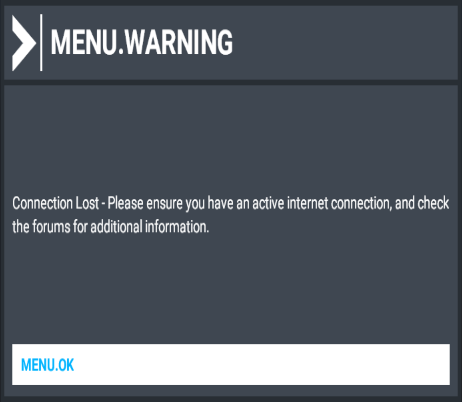
Connection Lost - Please ensure you have an active internet
connection, and check the forums for additional information.
-and-
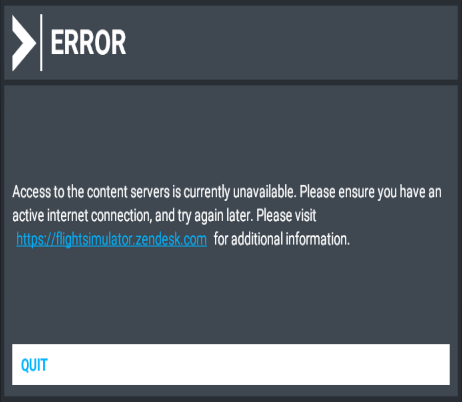
Access to the content servers is currently unavailable. Please
ensure you have an active internet connection, and try again later.
Please visit https://flightsimulator.zendesk.com/ for additional information.
Unfortunately, those error messages sent me into an endless loop that always resulted in my seeing these same messages again and again; and since there was no other way to exit the application, I had to hard kill FS2020 using the Windows Task Manager. I followed the advice from the error messages and I checked the forums, where I found the following two threads that described my exact situation:
Installation error after update
-and-
Access to the content servers is currently unavailable error message
I tried everything that was suggested in both of those threads (as well as suggestions from several other forum threads and blog posts), but so far - no luck. I still have yet to see anything from MSFS2020, but I'll keep looking.

With that in mind, here are my first impressions of Microsoft Flight Simulator 2020:
- Game Experience = I have no idea. I have yet to see the actual game.
- Installation Experience = terrible. The minimum requirements are excessive, and when an end user can't get a game to run as soon as they're done installing it, that's a catastrophic failure for which the game designer is solely responsible.
- Troubleshooting Experience = terrible. End users are pretty much on their own when something fails. Microsoft's single troubleshooting recommendation is for users to check the forums, which is way below par for a major software product from a major software company.
On a related side note, I installed MSFS2020 using the Microsoft Store application for Windows 10. That app is relatively easy to use, but it could be a lot better in my opinion; I often find myself highly annoyed at how difficult it is to find apps that I know have been released and install them.
Recovering a Mirror Set on Windows 10
23 March 2018 • by Bob • Windows, Troubleshooting
I run a mirror on the C drive for one of my Windows 10 systems, and a few nights ago that system wouldn't boot; I kept getting errors like "VOLMGRX internal error" and "A recently serviced boot binary is corrupt". I tried a few of the automatic Windows 10 recovery options while my system was rebooting, but nothing seemed to work. Skipping past the steps it took to get there, I also tried using the "bootrec /fixmbr" and "bootrec /fixboot" commands, with no luck, either.
However, since I was using a mirror set for the primary drive, I was able to do the following:
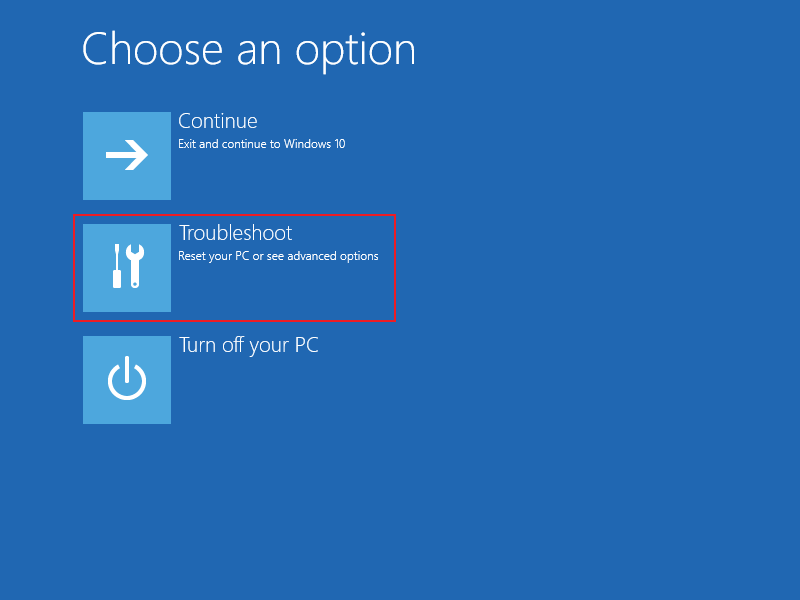
When I rebooted my system, I chose Troubleshoot for my startup option.
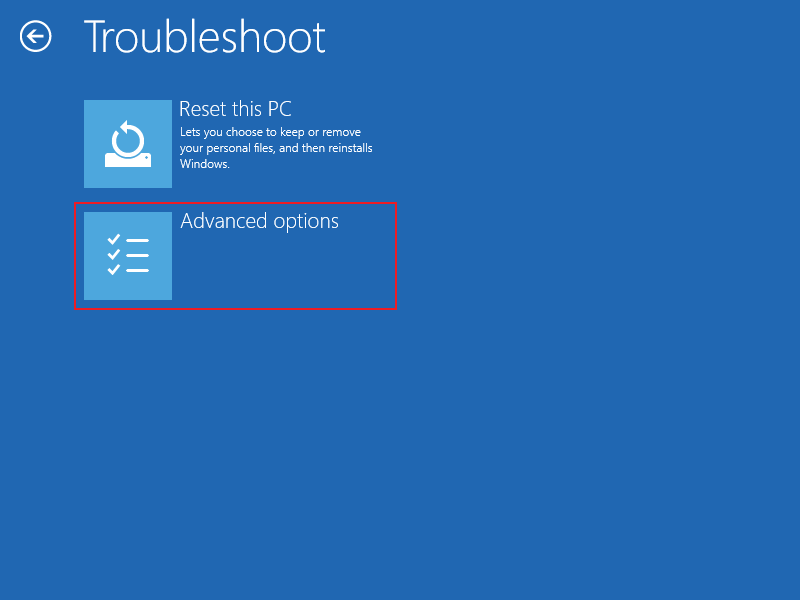
Step 2 - On the Troubleshoot screen, I chose Advanced options.
On the Advanced options screen, I chose Command prompt.
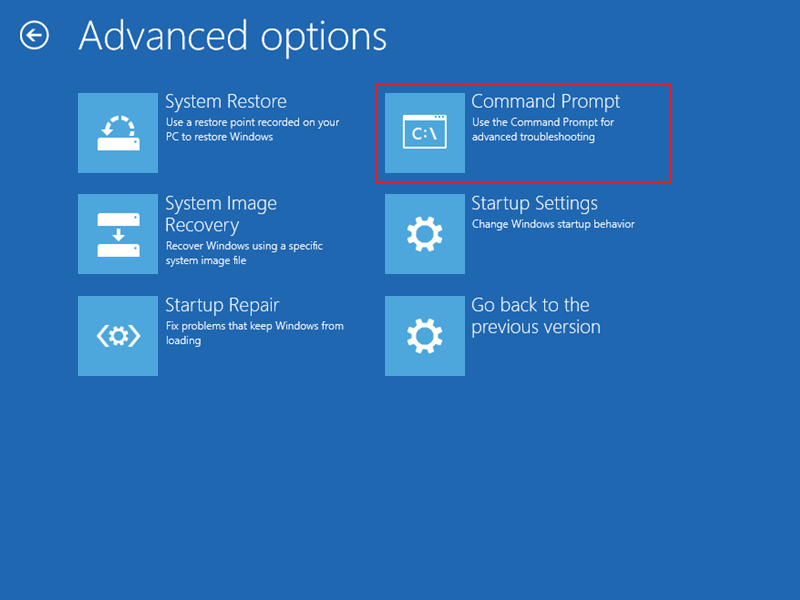
When the Command prompt opened, I typed the following commands:
diskpart

list volume
This returned a table like the following illustration, and I looked for the volume which showed status as "Failed Rd":
| Volume ### | Ltr | Label | Fs | Type | Size | Status | Info |
| ---------- | --- | ----------- | ----- | ---------- | ------- | --------- | -------- |
| Volume 0 | C | C-DRIVE | NTFS | Partition | 1848 GB | Failed Rd | Boot |
| Volume 1 | ESP | FAT32 | Partition | 500 MB | Healthy | System | |
| Volume 2 | WINRETOOLS | NTFS | Partition | 454 MB | Healthy | Hidden | |
| Volume 3 | Image | NTFS | Partition | 12 GB | Healthy | Hidden | |
| Volume 4 | DELLSUPPORT | NTFS | Partition | 1087 MB | Healthy | Hidden |
Once I knew the volume that was having the issue, I was able to run the following commands to recover the mirror set:
select volume 0

recover
I knew that the recovery was going to take a long to complete, and I could have used "detail volume" command every few minutes to check the status, (which will show "Rebuild" in the status column). But the truth is - it was already way past midnight, so I simply went to sleep for the night. When I got up the following morning, everything was fine and I was able to reboot successfully.
FYI - The following article has all the information you need about using the Windows DiskPart command, although be forewarned - you can really screw up your system if you do something wrong.
Correlation versus Causation
08 August 2016 • by Bob • Troubleshooting, Support
I just saw this t-shirt and I absolutely love it...
I cannot count the number of times that I have had to explain this simple concept to people who think that something coincidental was the driving force behind a problem which has developed with the technology that they use in their daily lives. For example, imagine the following statement: "I just closed the door and my television no longer works." Those two events obviously sound like completely unrelated events, and yet I have had to answer questions from dozens of people who honestly believe that one inapplicable event like this caused the other unconnected failure.
Oh sure, there are concepts like the Butterfly Effect to consider, but by and large those do not apply in your average, day-to-day situation. More often than not, the cause for most of the technology problems which I help people troubleshoot have nothing to do with what they believe to be the cause. (And believe me - I have heard some amazing theories from various people about the sources of their technological maladies.) My favorite story along these lines is the apocryphal My Car Does Not Like Vanilla Ice Cream story, which I honestly wish was true.
Nevertheless, as a piece of unsolicited advice - when something has gone wrong, it is often best to analyze the failure for what it is instead of trying to analyze what you believe is the origin of your problems.
POSTSCRIPT:
For more on this subject, see Post hoc ergo propter hoc.
FTP ETW Tracing and IIS 8 - Part 2
09 April 2014 • by Bob • Batch Files, ETW, IIS 8, Log Files, LogParser, Scripting, Troubleshooting, FTP, IIS, IIS 8, LogParser, FTP
Shortly after I published my FTP ETW Tracing and IIS 8 blog post, I was using the batch file from that blog to troubleshoot an issue that I was having with a custom FTP provider. One of the columns which I display in my results is Clock-Time, which is obviously a sequential timestamp that is used to indicate the time and order in which the events occurred.
| (Click the following image to view it full-size.) |
 |
At first glance the Clock-Time values might appear to be a range of useless numbers, but I use Clock-Time values quite often when I import the data from my ETW traces into something like Excel and I need to sort the data by the various columns.
That being said, apart from keeping the trace events in order, Clock-Time isn't a very user-friendly value. However, LogParser has some great built-in functions for crunching date/time values, so I decided to update the script to take advantage of some LogParser coolness and reformat the Clock-Time value into a human-readable Date/Time value.
My first order of business was to figure out how to decode the Clock-Time value; since Clock-Time increases for each event, it is obviously an offset from some constant, and after a bit of searching I found that the Clock-Time value is the offset in 100-nanosecond intervals since midnight on January 1, 1601. (Windows uses that value in a lot of places, not just ETW.) Once I had that information, it was pretty easy to come up with a LogParser formula to convert the Clock-Time value into the local time for my system, which is much easier to read.
With that in mind, here is the modified batch file:
@echo off

rem ======================================================================

rem Clean up old log files
for %%a in (ETL CSV) do if exist "%~n0.%%a" del "%~n0.%%a"

echo Starting the ETW session for full FTP tracing...
LogMan.exe start "%~n0" -p "IIS: Ftp Server" 255 5 -ets
echo.
echo Now reproduce your problem.
echo.
echo After you have reproduced your issue, hit any key to close the FTP
echo tracing session. Your trace events will be displayed automatically.
echo.
pause>nul

rem ======================================================================

echo.
echo Closing the ETW session for full FTP tracing...
LogMan.exe stop "%~n0" -ets

rem ======================================================================

echo.
echo Parsing the results - this may take a long time depending on the size of the trace...
if exist "%~n0.etl" (
   TraceRpt.exe "%~n0.etl" -o "%~n0.csv" -of CSV
   LogParser.exe "SELECT [Clock-Time], TO_LOCALTIME(ADD(TO_TIMESTAMP('1601-01-01 00:00:00', 'yyyy-MM-dd hh:mm:ss'), TO_TIMESTAMP(DIV([Clock-Time],10000000)))) AS [Date/Time], [Event Name], Type, [User Data] FROM '%~n0.csv'" -i:csv -e 2 -o:DATAGRID -rtp 20
)
When you run this new batch file, it will display an additional "Date/Time" column with a more-informative value in local time for the sever where you captured the trace.
| (Click the following image to view it full-size.) |
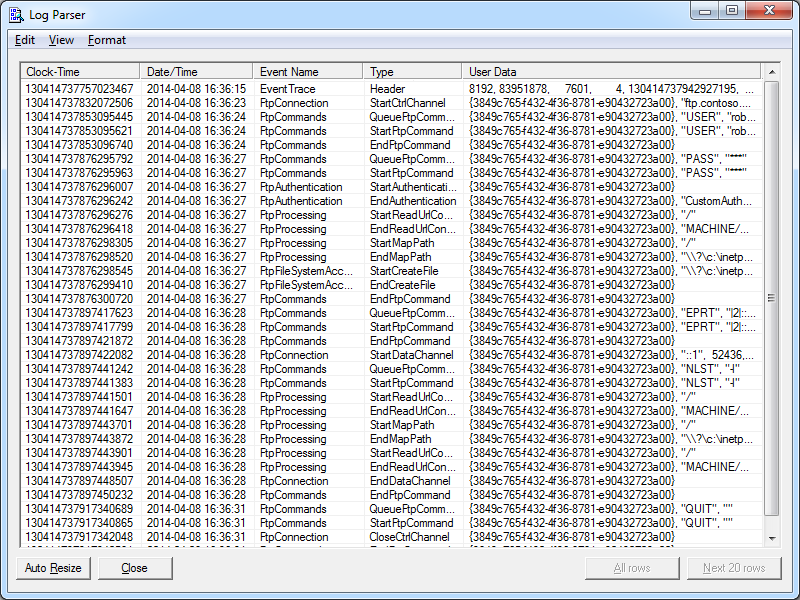 |
The new Date/Time column is considerably more practical, so I'll probably keep it in the batch file that I use when I am troubleshooting. You will also notice that I kept the original Clock-Time column; I chose to do so because I will undoubtedly continue to use that column for sorting when I import the data into something else, but you can safely remove that column if you would prefer to use only the new Date/Time value.
That wraps it up for today's post. :-)
Note: This blog was originally posted at http://blogs.msdn.com/robert_mcmurray/
FTP ETW Tracing and IIS 8
08 April 2014 • by Bob • FTP, IIS, IIS 8, LogParser, IIS, IIS 8, LogParser, ETW, Troubleshooting, Scripting, Batch Files, Log Files
In the past I have written a couple of blogs about using the FTP service's Event Tracing for Windows (ETW) features to troubleshoot issues; see FTP and ETW Tracing and Troubleshooting Custom FTP Providers with ETW for details. Those blog posts contain batch files which use the built-in Windows LogMan utility to capture an ETW trace, and they use downloadable LogParser utility to parse the results into human-readable form. I use the batch files from those blogs quite often, and I tend to use them a lot when I am developing custom FTP providers which add new functionality to my FTP servers.
Unfortunately, sometime around the release of Windows 8 and Windows Server 2012 I discovered that the ETW format had changed, and the current version of LogParser (version 2.2) cannot read the new ETW files. When you try to use the batch files from my blog with IIS 8, you see the following errors:
Verifying that LogParser.exe is in the path...
Done.

Starting the ETW session for full FTP tracing...
The command completed successfully.

Now reproduce your problem.

After you have reproduced your issue, hit any key to close the FTP tracing session. Your trace events will be displayed automatically.

Closing the ETW session for full FTP tracing...
The command completed successfully.

Parsing the results - this may take a long time depending on the size of the trace...
Task aborted.
Cannot open <from-entity>: Trace file "C:\temp\ftp.etl" has been created on a OS version (6.3) that is not compatible with the current OS version

Statistics:
-----------
Elements processed: 0
Elements output: 0
Execution time: 0.06 seconds
I meant to research a workaround at the time, but one thing led to another and I simply forgot about doing so. But I needed to use ETW the other day when I was developing something, so that seemed like a good time to quit slacking and come up with an answer. :-)
With that in mind, I came up with a very easy workaround, which I will present here. Once again, this batch file has a requirement on LogParser being installed on your system, but for the sake of brevity I have removed the lines from this version of the batch file which check for LogParser. (You can copy those lines from my previous blog posts if you want that functionality restored.)
Here's the way that this workaround is implemented: instead of creating an ETW log and then parsing it directly with LogParser, this new batch file invokes the built-in Windows TraceRpt command to parse the ETW file and save the results as a CSV file, which is then read by LogParser to view the results in a datagrid like the batch files in my previous blogs:
@echo off

rem ======================================================================

rem Clean up old log files
for %%a in (ETL CSV) do if exist "%~n0.%%a" del "%~n0.%%a"

echo Starting the ETW session for full FTP tracing...
LogMan.exe start "%~n0" -p "IIS: Ftp Server" 255 5 -ets
echo.
echo Now reproduce your problem.
echo.
echo After you have reproduced your issue, hit any key to close the FTP
echo tracing session. Your trace events will be displayed automatically.
echo.
pause>nul

rem ======================================================================

echo.
echo Closing the ETW session for full FTP tracing...
LogMan.exe stop "%~n0" -ets

rem ======================================================================

echo.
echo Parsing the results - this may take a long time depending on the size of the trace...
if exist "%~n0.etl" (
    TraceRpt.exe "%~n0.etl" -o "%~n0.csv" -of CSV
    LogParser.exe "SELECT [Clock-Time], [Event Name], Type, [User Data] FROM '%~n0.csv'" -i:csv -e 2 -o:DATAGRID -rtp 20
)
Here's another great thing about this new batch file - it will also work down-level on Windows 7 and Windows Server 2008; so if you have been using my previous batch files with IIS 7 - you can simply replace your old batch file with this new version. You will see a few differences between the results from my old batch files and this new version, namely that I included a couple of extra columns that I like to use for troubleshooting.
| (Click the following image to view it full-size.) |
| |
There is one last thing which I would like to mention in closing: I realize that it would be much easier on everyone if Microsoft simply released a new version of LogParser which works with the new ETW format, but unfortunately there are no plans at the moment to release a new version of LogParser. And trust me - I'm just as depressed about that fact as anyone else. :-(
Note: This blog was originally posted at http://blogs.msdn.com/robert_mcmurray/
AppCmd 80070057 errors when configuring site-level settings
02 October 2008 • by Bob • IIS, Troubleshooting
I had an interesting question from a coworker who was trying to use AppCmd to set the site-level SSL options for an FTP site. This should have been straightforward, and the syntax that he gave me looked correct:
appcmd.exe set config -section:system.applicationHost/sites -[name='Default FTP Site'].ftpServer.security.ssl.controlChannelPolicy:SslAllow /commit:apphost
That being said, whenever he or I ran the command we received the following cryptic error from AppCmd:
Failed to process input: The parameter 'Site'].ftpServer.security.ssl.controlChannelPolicy='SslAllow'' must begin with a / or - (HRESULT=80070057).
The HRESULT=80070057 code can mean either "One or more arguments are invalid" or "The parameter is incorrect", which seemed wrong to me because the arguments looked correct. Based on the error message referring to the word 'Site', I retried the command using the site ID instead of the site name:
appcmd.exe set config -section:system.applicationHost/sites -[id='4'].ftpServer.security.ssl.controlChannelPolicy:SslAllow /commit:apphost
This worked as expected, so I knew that somehow the problem was with the site name.
I searched around and I found a forum post on IIS.NET where Anil Ruia had stated that when the site name has a space in it you should enclose the entire parameter statement in quotes. Armed with that knowledge, I tried the following command:
appcmd.exe set config -section:system.applicationHost/sites "-[name='Default FTP Site'].ftpServer.security.ssl.controlChannelPolicy:SslAllow" /commit:apphost
This fixed the problem and the command worked as I would have originally expected.
By the way, in general you should be able use the following command to get the FTP syntax listing for an area:
appcmd.exe set config -section:system.applicationHost/sites -? | find /i "ftp"
This wouldn't have helped my coworker identify the problem with the "name" parameter, but it would have helped by giving him the syntax for using the "id" parameter.
Note: This blog was originally posted at http://blogs.msdn.com/robert_mcmurray/