FTP 7.5 Extensibility and Visual Studio Express Editions
17 September 2009 • by Bob • IIS, FTP, Extensibility
In earlier blog posts I have mentioned that I written the several walkthroughs to help developers get started writing providers for the FTP 7.5 service, all of which available on Microsoft's learn.iis.net Web site under the "Developing for FTP 7.5" section. In each of these walkthroughs I wrote the steps as if you were using Visual Studio 2008.
Following up on that, I received a great question yesterday from a customer, Paul Dowdle, who wondered if it was possible to write an extensibility provider for the FTP 7.5 service using one of the Visual Studio Express Editions. By way of coincidence, I used to install Visual C# Express Edition on my laptop when I was traveling around the world to speak at events like TechEd. I usually did this because the Express Edition took up less hard drive space than a full installation of Visual Studio, and I was only writing code in C# on my laptop.
To answer Paul's question, the short answer is - yes, you can use Visual Studio Express Editions to develop custom providers for the FTP 7.5 service, with perhaps a few small changes from my walkthroughs.
For example, if you look at my "How to Use Managed Code (C#) to Create a Simple FTP Authentication Provider" walkthrough, in the section that is titled "Step 1: Set up the Project Environment", there is an optional step 6 for adding a custom build event to register the DLL automatically in the Global Assembly Cache (GAC) on your development computer.
When I installed Microsoft Visual C# 2008 Express Edition on a new computer, I didn't have the "%VS90COMNTOOLS%" environment variable or the "vsvars32.bat" file, so I had to update the custom build event to the following:
net stop ftpsvc
"%ProgramFiles%\Microsoft SDKs\Windows\v6.0A\bin\gacutil.exe" /if "$(TargetPath)"
net start ftpsvc
Once I made that change, the rest of the walkthrough worked as written.
So, to reiterate my earlier statement - you can use Visual Studio Express Editions to develop custom providers for the FTP 7.5 service. My thanks to Paul for the great question!
Note: This blog was originally posted at http://blogs.msdn.com/robert_mcmurray/
Merging FTP Extensibility Walkthroughs - Part 2
19 August 2009 • by Bob • FTP, Extensibility
I had not intended to do a series on this subject when I wrote my original Merging FTP Extensibility Walkthroughs blog post, but I came up with a scenario that I felt was worth sharing. I recently posted the following walkthrough on the learn.iis.net web site:
How to Use Managed Code (C#) to Create an FTP Authentication Provider with Dynamic IP Restrictions
We have had many customer requests for a dynamic IP restrictions provider for the FTP server, and I wanted to get that out to customers as soon as I could. That being said, like several of my extensibility walkthroughs in the past, I wrote and tested the provider in that walkthrough on one of the servers that I manage. To show how effective it was, within the first couple of hours the provider had caught and blocked its first script kiddie who was attempting a brute force attack on my FTP server. Over the next few days the provider caught its next hacker, and over the past few weeks it has continued to do so.
That being said, I thought that it might be nice to know when an IP address was blocked, and I had already written the following walkthrough:
How to Use Managed Code (C#) to Create an FTP Provider that Sends an Email when Files are Uploaded
With that in mind, merging the two walkthroughs seemed like a simple thing to do.
Before continuing I need to reiterate the notice that I added to the dynamic IP restrictions walkthrough:
IMPORTANT NOTE: The latest version of the FTP 7.5 service must be installed in order to use the provider in this walkthrough. A version FTP 7.5 was released on August 3, 2009 that addressed an issue where the local and remote IP addresses in the IFtpLogProvider.Log() method were incorrect. Because of this, using an earlier version of the FTP service will prevent this provider from working.
With that warning out of the way, here are the steps that you need to follow in order to merge the two walkthroughs:
Step 1 - Create the project
Create a new C# project following all of the steps in the How to Use Managed Code (C#) to Create an FTP Authentication Provider with Dynamic IP Restrictions walkthrough.
Step 2 - Merge global variables
In this step you need to merge the global variables from the two walkthroughs. In my provider this looked like the following:
// Define the default values - these are only
// used if the configuration settings are not set.
const int defaultLogonAttempts = 5;
const int defaultFloodSeconds = 30;
const int defaultSmtpPort = 25;

// Define a connection string with no default.
private static string _connectionString;

// Initialize the private variables with the default values.
private static int _logonAttempts = defaultLogonAttempts;
private static int _floodSeconds = defaultFloodSeconds;

// Flag the application as uninitialized.
private static bool _initialized = false;

// Define a list that will contain the list of flagged sessions.
private static List<string> _flaggedSessions;

private string _smtpServerName;
private string _smtpFromAddress;
private string _smtpToAddress;
private int _smtpServerPort;
Step 3 - Merge the Initialize() methods
In this step you need to merge the Initialize() methods from the two walkthroughs so that all of the settings are retrieved from the IIS configuration file when the provider is loaded by the FTP service. In my provider this looked like the following:
// Initialize the provider.
protected override void Initialize(StringDictionary config)
{
    // Test if the application has already been initialized.
    if (_initialized == false)
    {
        // Create the flagged sessions list.
        _flaggedSessions = new List<string>();

        // Retrieve the connection string for the database connection.
        _connectionString = config["connectionString"];
        if (string.IsNullOrEmpty(_connectionString))
        {
            // Raise an exception if the connection string is missing or empty.
            throw new ArgumentException(
                "Missing connectionString value in configuration.");
        }
        else
        {
            // Determine whether the database is a Microsoft Access database.
            if (_connectionString.Contains("Microsoft.Jet"))
            {
                // Throw an exception if the database is a Microsoft Access database.
                throw new ProviderException("Microsoft Access databases are not supported.");
            }
        }

        // Retrieve the number of failures before an IP
        // address is locked out - or use the default value.
        if (int.TryParse(config["logonAttempts"], out _logonAttempts) == false)
        {
            // Set to the default if the number of logon attempts is not valid.
            _logonAttempts = defaultLogonAttempts;
        }

        // Retrieve the number of seconds for flood
        // prevention - or use the default value.
        if (int.TryParse(config["floodSeconds"], out _floodSeconds) == false)
        {
            // Set to the default if the number of logon attempts is not valid.
            _floodSeconds = defaultFloodSeconds;
        }

        // Test if the number is a positive integer and less than 10 minutes.
        if ((_floodSeconds <= 0) || (_floodSeconds > 600))
        {
            // Set to the default if the number of logon attempts is not valid.
            _floodSeconds = defaultFloodSeconds;
        }

        // Retrieve the email settings from configuration.
        _smtpServerName = config["smtpServerName"];
        _smtpFromAddress = config["smtpFromAddress"];
        _smtpToAddress = config["smtpToAddress"];

        // Detect and handle any mis-configured settings.
        if (!int.TryParse(config["smtpServerPort"], out _smtpServerPort))
        {
            _smtpServerPort = defaultSmtpPort;
        }
        if (string.IsNullOrEmpty(_smtpServerName))
        {
            throw new ArgumentException(
                "Missing smtpServerName value in configuration.");
        }
        if (string.IsNullOrEmpty(_smtpFromAddress))
        {
            throw new ArgumentException(
                "Missing smtpFromAddress value in configuration.");
        }
        if (string.IsNullOrEmpty(_smtpToAddress))
        {
            throw new ArgumentException(
                "Missing smtpToAddress value in configuration.");
        }

        // Initial garbage collection.
        GarbageCollection(true);

        // Flag the provider as initialized.
        _initialized = true;
    }
}
Step 4 - Add a SendEmail() method
For this step I copied some of my code from the email walkthrough and used it as the foundation for a new SendEmail() method that I added to the provider. In my provider this looked like the following:
private void SendEmail(string emailSubject, string emailMessage)
{
    // Create an SMTP message.
    SmtpClient smtpClient = new SmtpClient(_smtpServerName, _smtpServerPort);
    MailAddress mailFromAddress = new MailAddress(_smtpFromAddress);
    MailAddress mailToAddress = new MailAddress(_smtpToAddress);

    using (MailMessage mailMessage = new MailMessage(mailFromAddress, mailToAddress))
    {
        try
        {
            // Format the SMTP message as UTF8.
            mailMessage.BodyEncoding = Encoding.UTF8;
            // Add the subject.
            mailMessage.Subject = emailSubject;
            // Add the body.
            mailMessage.Body = emailMessage;
            // Send the email message.
            smtpClient.Send(mailMessage);
        }
        catch (SmtpException ex)
        {
            // Send an exception message to the debug
            // channel if the email fails to send.
            Debug.WriteLine(ex.Message);
        }
    }
}
Note: This uses the settings that you store in your IIS applicationHost.config file and are loaded by the Initialize() method.
Step 5 - Add email functionality to the BanAddress() method
In this step you add the functionality to send an email whenever an IP address is added to the list of banned IP addresses. In my provider this looked like the following:
// Mark an IP address as banned.
private void BanAddress(string ipAddress)
{
    // Check if the IP address is already banned.
    if (IsAddressBanned(ipAddress) == false)
    {
        // Ban the IP address if it is not already banned.
        InsertDataIntoTable("[BannedAddresses]",
            "[IPAddress]", "'" + ipAddress + "'");
        // Send an email for the banned address.
        SendEmail("Banned IP Address",
            "The IP address " + ipAddress + " was banned.");
    }
}
Step 6 - Methods that are not changed
I need to point out that there are several methods that require no changes. These methods are listed here for reference:
- Dispose()
- AuthenticateUser()
- Log()
- IsValidUser()
- IsAddressBanned()
- IsSessionFlagged()
- FlagSession()
- GarbageCollection
- GetRecordCountByCriteria()
- InsertDataIntoTable()
- DeleteRecordsByCriteria()
- ExecuteQuery()
Note: You could easily add the email functionality to the FlagSession() method so you will see when a banned IP address is trying to access your server, but depending on the number of sessions that are flagged on your server you might receive more emails than you really need.
Step 7 - Register the provider and configure your settings
In this last step you add the provider to your IIS configuration settings using the AppCmd utility, and you specify the values for the various settings that the provider requires:
cd %SystemRoot%\System32\Inetsrv
AppCmd.exe set config -section:system.ftpServer/providerDefinitions /+"[name='FtpAddressRestrictionAuthentication',type='FtpAddressRestrictionAuthentication,FtpAddressRestrictionAuthentication,version=1.0.0.0,Culture=neutral,PublicKeyToken=426f62526f636b73']" /commit:apphost
AppCmd.exe set config -section:system.ftpServer/providerDefinitions /+"activation.[name='FtpAddressRestrictionAuthentication']" /commit:apphost
AppCmd.exe set config -section:system.ftpServer/providerDefinitions /+"activation.[name='FtpAddressRestrictionAuthentication'].[key='smtpServerName',value='localhost']" /commit:apphost
AppCmd.exe set config -section:system.ftpServer/providerDefinitions /+"activation.[name='FtpAddressRestrictionAuthentication'].[key='smtpServerPort',value='25']" /commit:apphost
AppCmd.exe set config -section:system.ftpServer/providerDefinitions /+"activation.[name='FtpAddressRestrictionAuthentication'].[key='smtpFromAddress',value='someone@contoso.com']" /commit:apphost
AppCmd.exe set config -section:system.ftpServer/providerDefinitions /+"activation.[name='FtpAddressRestrictionAuthentication'].[key='smtpToAddress',value='someone@contoso.com']" /commit:apphost
AppCmd.exe set config -section:system.ftpServer/providerDefinitions /+"activation.[name='FtpAddressRestrictionAuthentication'].[key='connectionString',value='Server=localhost;Database=FtpAuthentication;User ID=FtpLogin;Password=P@ssw0rd']" /commit:apphost
AppCmd.exe set config -section:system.ftpServer/providerDefinitions /+"activation.[name='FtpAddressRestrictionAuthentication'].[key='logonAttempts',value='5']" /commit:apphost
AppCmd.exe set config -section:system.ftpServer/providerDefinitions /+"activation.[name='FtpAddressRestrictionAuthentication'].[key='floodSeconds',value='30']" /commit:apphost
Note: You need to update the above syntax using the managed type information for your provider and the configuration settings for your SMTP server, email addresses, and database connection string.
Step 8 - Add the provider to a site
In this last step you add the provider to a site. If you were adding the provider to your Default Web Site that would look like the following:
AppCmd.exe set config -section:system.applicationHost/sites /"[name='Default Web Site'].ftpServer.security.authentication.basicAuthentication.enabled:False" /commit:apphost
AppCmd.exe set config -section:system.applicationHost/sites /+"[name='Default Web Site'].ftpServer.security.authentication.customAuthentication.providers.[name='FtpAddressRestrictionAuthentication',enabled='True']" /commit:apphost
AppCmd set site "Default Web Site" /+ftpServer.customFeatures.providers.[name='FtpAddressRestrictionAuthentication',enabled='true'] /commit:apphost
Summary
That wraps it up for today's post, and I hope you find it useful. 
Note: This blog was originally posted at http://blogs.msdn.com/robert_mcmurray/
Automatically Creating Checksum Files for FTP Uploads
30 July 2009 • by Bob • FTP, Extensibility
I had a great question in the publishing forums on forums.iis.net, where someone was asking if FTP 7 supported the XCRC command. The short answer is that the XCRC command is not supported, but I came up with a way to create an FTP provider that supports something like it. Since it was a rather fun code sample to write, I thought that I'd turn it into a blog.
The sample FTP provider code in this blog post will automatically calculate an MD5 checksum from a file that is uploaded and store it in a file with a "*.MD5.TXT" file name extension. You can then compare the uploaded checksum with a local checksum on the client to verify the uploaded file's integrity.
There are a few points that I need to discuss before I present the code sample:
- I chose to use MD5 because it is built-in to the .NET System.Security.Cryptography namespace and I often like to use MD5 for file checksums. I could just have easily implemented SHA1, SHA256, or any of the other built-in hashing algorithms. Unfortunately, CRC32 is not a built-in algorithm for .NET, but a quick search around the Internet yielded several CRC32 samples in C# from various developers, so if you specifically need the CRC32 algorithm you can find it pretty quickly and substitute it for MD5 in my example. (You can click here to search for examples.) You could go one step further and have your provider support multiple checksum algorithms, but that's going way outside the scope of this blog.
- There are a couple of security considerations for this provider:
- The provider needs to calculate the path of the uploaded file, and to do so requires calling into the IIS configuration APIs. As I mention in the code remarks:
- The FTP service will host the compiled assembly in the "Microsoft FTP Service Extensibility Host" COM+ package (DLLHOST.EXE), which runs by default as NETWORK SERVICE.
- Also by default, the NETWORK SERVICE account does not have sufficient privileges to read the IIS configuration settings. As such, you must either grant READ permissions to NETWORK SERVICE for the IIS configuration files, or configure the COM+ package to run as a user that has at least READ access to the files in the InetSrv\config folder.
- By default, the NETWORK SERVICE account may not have WRITE permission to the folder where your files are uploaded, so the checksum files cannot be written. As such, you will need to grant READ/WRITE access to the destination where the checksum files will be written.
- The above steps are not generally recommended practices; but if you choose to grant NETWORK SERVICE permission to the configuration files, the remarks section in the code sample provides the details that you need.
- Alternatively, you could skip the path lookup and always store the checksum files in a known location. This allows you to remove the MapSiteRootPath() and FindElement() methods from the code sample, and you need only grant the NETWORK SERVICE account permission for the known location.
- The provider needs to calculate the path of the uploaded file, and to do so requires calling into the IIS configuration APIs. As I mention in the code remarks:
- The MapSiteRootPath() method in the provider sample calculates the path of the site's root, then uses the relative path of the uploaded file to compute the full path to the checksum file. This does not take into account any paths that include virtual directories; as such, you would need to accommodate for any virtual paths in your site's hierarchy. (That's too much code for this blog post.)
- The provider defines a 1 GB constant for the maximum file size for computing checksums. I specified this value so that large files would not tie up your system's resources. You can increase or decrease that value, you could make that a parameter that is stored in the provider's settings, or you can remove the functionality completely. This provider runs synchronously, so larger files will obviously take more time. While it's outside the scope of this blog, you could implement some form of asynchronous functionality. (When discussing this provider with Daniel Vasquez Lopez, he suggested using MSMQ - but that's really going way beyond the scope of what I wanted to accomplish with this blog.)
All of that being said, this provider follows the same development path as the provider in my How to Use Managed Code (C#) to Create a Simple FTP Logging Provider walkthrough, so if you follow the steps in that walkthrough and substitute "FtpUploadChecksumDemo" every place that you see "FtpLoggingDemo" and add a reference to Microsoft.Web.Administration, you should have all of the steps that you need in order to use this provider.
So without further discussion, here's the code for the provider:
using System;
using System.Configuration.Provider;
using System.IO;
using System.Security.Cryptography;
using System.Text;
using Microsoft.Web.Administration;
using Microsoft.Web.FtpServer;

// NOTE: This code is provided "as-is" and comes with the following security
// considerations. The FTP service will host the compiled assembly in the
// "Microsoft FTP Service Extensibility Host" COM+ package (DLLHOST.EXE),
// which runs by default as NETWORK SERVICE. By default, this account does not
// have sufficient privileges to read the IIS configuration settings. As such,
// you must either grant READ permissions to NETWORK SERVICE for the configuration
// files, or configure the COM+ package to run as a user that has at least READ
// access to the files in the InetSrv\config folder and READ/WRITE access to the
// destination where the checksum file will be written. However, these are not
// generally recommended practices.
//
// If you choose to grant NETWORK SERVICE permission to the configuration files,
// the following three commands should accomplish the requisite permissions:
//
//  cacls "%SystemRoot%\System32\inetsrv\config" /G "Network Service":R /E
//  cacls "%SystemRoot%\System32\inetsrv\config\redirection.config" /G "Network Service":R /E
//  cacls "%SystemRoot%\System32\inetsrv\config\applicationHost.config" /G "Network Service":R /E
//
// NOTE: You will need to do something similar for your content directory so that
// the checksum files can be created.

public sealed class FtpUploadChecksumDemo : BaseProvider, IFtpLogProvider
{
  // Implement the logging method.
  void IFtpLogProvider.Log(FtpLogEntry loggingParameters)
  {
    // Test for a successful file upload operation.
    if ((loggingParameters.Command == "STOR") &&
      (loggingParameters.FtpStatus == 226))
    {
      try
      {
        // Define a 1GB maximum length - to prevent system hogging.
        const long maxLength = 0x3fffffff;

        // Map the path to the site root.
        string fullPath = MapSiteRootPath(loggingParameters.SiteName);
        // Append the relative path of the uploaded file.
        fullPath += loggingParameters.FullPath;
        // Expand any environment variables.
        fullPath = Environment.ExpandEnvironmentVariables(fullPath);
        // Convert forward slashes to back slashes
        fullPath = fullPath.Replace(@"/", @"\");

        // Open the uploaded file to create a CRC.
        using (FileStream input = File.Open(
          fullPath,
          FileMode.Open,
          FileAccess.Read,
          FileShare.Read))
        {
          // Test the input file length.
          if (input.Length > maxLength)
          {
            // Throw an execption if the file is too big.
            throw new ProviderException(
              String.Format("Input file is too large: {0}",
              input.Length.ToString()));
          }
          else
          {
            // Open the hash file for output.
            using (StreamWriter output = new StreamWriter(
              fullPath + ".MD5.txt",
              false))
            {
              // Create an MD5 object.
              MD5 md5 = MD5.Create();
              // Retrieve the hash byte array.
              byte[] byteArray = md5.ComputeHash(input);
              // Create a new string builder for the ASCII hash string.
              StringBuilder stringBuilder =
                new StringBuilder(byteArray.Length * 2);
              // Loop through the hash.
              foreach (byte byteMember in byteArray)
              {
                // Append each ASCII hex byte to the hash string.
                stringBuilder.AppendFormat("{0:x2}", byteMember);
              }
              // Write the hash string to the output file.
              output.Write(stringBuilder);
            }
          }
        }
      }
      catch(Exception ex)
      {
        throw new ProviderException(ex.Message);
      }
    }
  }

  // This method is almost 100% from scripts that were created
  // by the IIS Manager Configuration Editor admin pack tool.
  private static string MapSiteRootPath(string siteName)
  {
    try
    {
      using (ServerManager serverManager = new ServerManager())
      {
        Configuration config =
          serverManager.GetApplicationHostConfiguration();
        ConfigurationSection sitesSection =
          config.GetSection("system.applicationHost/sites");
        ConfigurationElementCollection sitesCollection =
          sitesSection.GetCollection();
        ConfigurationElement siteElement =
          FindElement(sitesCollection, "site", "name", siteName);
        if (siteElement == null)
        {
          throw new InvalidOperationException("Element not found!");
        }
        else
        {
          ConfigurationElementCollection siteCollection =
            siteElement.GetCollection();
          ConfigurationElement applicationElement =
            FindElement(siteCollection,
            "application",
            "path", @"/");
          if (applicationElement == null)
          {
            throw new InvalidOperationException("Element not found!");
          }
          else
          {
            ConfigurationElementCollection applicationCollection =
              applicationElement.GetCollection();
            ConfigurationElement virtualDirectoryElement =
              FindElement(applicationCollection,
              "virtualDirectory",
              "path", @"/");
            if (virtualDirectoryElement == null)
            {
              throw new InvalidOperationException("Element not found!");
            }
            else
            {
              return virtualDirectoryElement["physicalPath"].ToString();
            }
          }
        }
      }
    }
    catch (Exception ex)
    {
      throw new ProviderException(ex.Message);
    }
  }

  // This method is almost 100% from scripts that were created
  // by the IIS Manager Configuration Editor admin pack tool.
  private static ConfigurationElement FindElement(
    ConfigurationElementCollection collection,
    string elementTagName,
    params string[] keyValues)
  {
    foreach (ConfigurationElement element in collection)
    {
      if (String.Equals(element.ElementTagName,
        elementTagName,
        StringComparison.OrdinalIgnoreCase))
      {
        bool matches = true;

        for (int i = 0; i < keyValues.Length; i += 2)
        {
          object o = element.GetAttributeValue(keyValues[i]);
          string value = null;
          if (o != null)
          {
            value = o.ToString();
          }

          if (!String.Equals(value,
            keyValues[i + 1],
            StringComparison.OrdinalIgnoreCase))
          {
            matches = false;
            break;
          }
        }
        if (matches)
        {
          return element;
        }
      }
    }
    return null;
  }
}
That wraps it up for today's post.
Note: This blog was originally posted at http://blogs.msdn.com/robert_mcmurray/
A Little Scripting Saved My Day (;-])
27 July 2009 • by Bob • IIS, Scripting
I have mentioned in previous blog posts that I tend to write many of my blog posts and walkthroughs for IIS.NET based on code that I've written for myself, and today's blog post is the story of how one of my samples saved my rear over this past weekend.
One of the servers that I manage is used to host web sites for several friends of mine. (It's their hobby to have a web site and it's my hobby to host it for them.) Anyway, sometime on Sunday someone let me know that one of my sites didn't seem to be behaving correctly, so I browsed it with Internet Explorer and saw that I was getting an HTTP 503 error. I've seen this error when an application pool goes offline for some reason, so I didn't panic - yet - because I knew that the web site was in a separate application pool. With that in mind, I browsed to a web site that is in a different application pool. Same thing - HTTP 503 error. This was beginning to concern me.
I logged into the web server and ran iisreset from a command-line - this threw the following error - and now I was really starting to become agitated:
CMD>iisreset
Attempting stop...
Internet services successfully stopped
Attempting start...
Restart attempt failed.
The IIS Admin Service or the World Wide Web Publishing Service, or a service dependent on them failed to start. The service, or dependent services, may had an error during its startup or may be disabled.
CMD>
I knew that the cause of the error should be in the Windows Event Viewer, so I opened the System log in Event Viewer and saw the following error:
| Log Name: | System |
|---|---|
| Source: | Microsoft-Windows-WAS |
| Date: | 7/26/2009 10:59:52 AM |
| Event ID: | 5172 |
| Task Category: | None |
| Level: | Error |
| Keywords: | Classic |
| User: | N/A |
| Computer: | MYSERVER |
| Description: | The Windows Process Activation Service encountered an error trying to read configuration data from file '\\?\C:\Windows\system32\inetsrv\config\applicationHost.config', line number '308'. The error message is: 'Configuration file is not well-formed XML'. The data field contains the error number. |
| Event Xml: | |
| <Event xmlns="http://schemas.microsoft.com/win/2004/08/events/event"> | |
Now that I was armed with the file name and line number of the failure in my configuration settings, I was able to go straight to the source of the problem. (I love IIS 7's descriptive error messages - don't you?) Once I opened the file and jumped to the correct location, I saw several lines of unintelligible garbage. For reasons that are still unknown to me - my applicationHost.config file had become corrupted and IIS was dead in the water until I fixed the problem. I looked through the file and removed most of the garbage and saved the edited file to IIS - this got the web sites working, but only partially. Some necessary settings had obviously been removed while I was clearing all of out the unintelligible garbage, and it might take me a long time to discover what those settings were.
The next thing that I did was to take a look in my two readily-accessible backup drives; I have two external hard drives that keep a backup of the web server - one hard drive is directly plugged into the web server via a USB cable, and the other hard drive is plugged into a physically separate server that rotates drives with off-site storage on a monthly basis. The problem is, my weekly backups had just run, so the copy in each backup location had been overwritten with the corrupted version. (I'm going to have to rethink my backup strategy after this - but that's another story.) The backup copy in my off-site storage location should be intact, but that copy would be a few weeks old so I would be missing some settings, and I would have to drive an hour or so round-trip in order to pick up the drive. This wasn't an ideal solution - but it was definitely a feasible strategy.
It was at this point that I remembered that I had written following blog post some time ago:
Automating IIS 7 Backups
/post/automating-iis-7-backups
I wrote the script in that blog post for the server that I was currently managing, and because of this preventative measure I had dozens of backups going back several weeks to choose from. So I was able to quickly find a copy with no corruption and I restored that copy to my IIS config directory. At this point all of my web sites came online with all of their functionality. Having fixed the major issues, I used WinDiff to verify any settings that might have been changed between the restored copy and the corrupted copy.
So in conclusion, this story had a happy ending, and it left me with a few lessons learned:
- You can never have too many backups
- I need to rethink how I roll out my backup strategy with regard to using external hard drives
- Writing cool scripts to automate your backups can save your rear end
That sums it up for today's post. 
Note: This blog was originally posted at http://blogs.msdn.com/robert_mcmurray/
Merging FTP Extensibility Walkthroughs
23 July 2009 • by Bob • FTP, Extensibility
Over the past several months I've been publishing a series of walkthroughs that use the extensibility in FTP 7.5 to create a several custom providers for a variety of scenarios, and today I posted my most recent entry in the series:
How to Use Managed Code to Create an FTP Authentication Provider using an XML Database
As a piece of behind-the-scenes trivia, some of these walkthroughs were based off custom providers that I had actually written for my FTP servers, and I used the samples that I wrote for some of the other walkthroughs as a starting point for custom providers that I currently use. With that in mind, I'd like to use today's blog to talk about some of the ways that I combine what you see in a few of these walkthroughs into some useful scenarios.
One of the common providers that I use is a combination of the code that you see in these two walkthroughs:
- How to Use Managed Code to Create an FTP Authentication Provider using an XML Database
- How to Use Managed Code to Create a Simple FTP Home Directory Provider
Here's the way that I create the provider - I start with a single provider class that implements the IFtpHomeDirectoryProvider, IFtpAuthenticationProvider, and IFtpRoleProvider interfaces, and I create a few global variables that I'll use later.
public class FtpXmlAuthentication : BaseProvider,
    IFtpHomeDirectoryProvider,
    IFtpAuthenticationProvider,
    IFtpRoleProvider
{
    private string _XmlFileName;

    private string _HomeDirectory;

    private Dictionary<string, XmlUserData> _XmlUserData =
        new Dictionary<string, XmlUserData>(
            StringComparer.InvariantCultureIgnoreCase);
}
I add an Initialize() method to the class, where I load the values named xmlFileName and homeDirectory from the configuration settings.
protected override void Initialize(StringDictionary config)
{
    _XmlFileName = config["xmlFileName"];
    _HomeDirectory = config["homeDirectory"];
    if (string.IsNullOrEmpty(_XmlFileName))
    {
        throw new ArgumentException("Missing xmlFileName value in configuration.");
    }
}
I recycle the provider across a bunch of different FTP sites, and I don't always use the custom home directory feature, so my GetUserHomeDirectoryData() method has to accommodate for that. (Note: this means that your FTP site has to use a method of User Isolation other than "Custom". You can find more information about User Isolation on the FTP User Isolation Page.)
string IFtpHomeDirectoryProvider.GetUserHomeDirectoryData(
    string sessionId,
    string siteName,
    string userName)
{
    if (string.IsNullOrEmpty(_HomeDirectory))
    {
        throw new ArgumentException("Missing homeDirectory value in configuration.");
    }
    return _HomeDirectory;
}
(Note: While it may seem that I could throw the ArgumentException() in the Initialize() method, since I don't always need this value for providers that don't implement the home directory lookup it's best to throw the exception in the GetUserHomeDirectoryData() method.)
The last thing that I do for the provider is to copy the AuthenticateUser(), IsUserInRole(), ReadXmlDataStore(), GetInnerText() methods and XmlUserData class from the How to Use Managed Code to Create an FTP Authentication Provider using an XML Database walkthrough. This gives me a custom FTP authentication provider that provides user, role, and home directory lookups. This means the XML file for the provider registration has to vary a little from the walkthroughs in order to define settings for the xmlFileName and homeDirectory values. Here's an example of that that might look like:
<system.ftpServer>
    <providerDefinitions>
        <add name="ContosoXmlAuthentication" type="FtpXmlAuthentication,FtpXmlAuthentication,version=1.0.0.0,Culture=neutral,PublicKeyToken=426f62526f636b73" />
        <activation>
            <providerData name="ContosoXmlAuthentication">
                <add key="xmlFileName" value="C:\Inetpub\www.contoso.com\Users.xml" />
                <add key="homeDirectory" value="C:\Inetpub\www.contoso.com\ftproot" />
            </providerData>
        </activation>
    </providerDefinitions>

    <!-- Other XML goes here -->

</system.ftpServer>
The last thing that you need to do is to create the XML file that contains the usernames and passwords, which you can copy from the How to Use Managed Code to Create an FTP Authentication Provider using an XML Database walkthrough.
I use this provider on multiple FTP sites, so I simply re-register the provider under a different name and specify different values for the xmlFileName and homeDirectory values:
<system.ftpServer>
    <providerDefinitions>
        <add name="ContosoXmlAuthentication" type="FtpXmlAuthentication,FtpXmlAuthentication,version=1.0.0.0,Culture=neutral,PublicKeyToken=426f62526f636b73" />
        <add name="FabrikamXmlAuthentication" type="FtpXmlAuthentication,FtpXmlAuthentication,version=1.0.0.0,Culture=neutral,PublicKeyToken=426f62526f636b73" />
        <add name="WingTipToysXmlAuthentication" type="FtpXmlAuthentication,FtpXmlAuthentication,version=1.0.0.0,Culture=neutral,PublicKeyToken=426f62526f636b73" />
        <activation>
            <providerData name="ContosoXmlAuthentication">
                <add key="xmlFileName" value="C:\Inetpub\www.Contoso.com\Users.xml" />
                <add key="homeDirectory" value="C:\Inetpub\www.Contoso.com\ftproot" />
            </providerData>
            <providerData name="FabrikamXmlAuthentication">
                <add key="xmlFileName" value="C:\Inetpub\www.Fabrikam.com\Users.xml" />
                <add key="homeDirectory" value="C:\Inetpub\www.Fabrikam.com\ftproot" />
            </providerData>
            <providerData name="WingTipToysXmlAuthentication">
                <add key="xmlFileName" value="C:\Inetpub\www.WingTipToys.com\Users.xml" />
                <add key="homeDirectory" value="C:\Inetpub\www.WingTipToys.com\ftproot" />
            </providerData>
        </activation>
    </providerDefinitions>

    <!-- Other XML goes here -->

</system.ftpServer>
So in the end I have a provider that provides unique users, roles, and home directory for each FTP site. I point the FTP root to a path that is outside of the HTTP root, so my users can upload files for an application like a photo gallery that I provide them, but they can't access the actual ASP.NET files for the application. Since they're using accounts from the XML file, I don't have to hand out physical accounts on my servers or my domain. (The security-paranoid side of my personality really likes that.)
For some sites I use the XML file for ASP.NET membership by following the instructions in the How to use the Sample Read-Only XML Membership and Role Providers with IIS 7.0 walkthrough. In those cases, I move the XML file into the App_Data folder of the web site. Once again, since the FTP root is different than the HTTP root, this prevents any of my FTP users from accessing the XML file and making changes to it. (Although you could do that if you wanted to allow one of your users to update the list of FTP users for their site. But as you can imagine, the security-paranoid side of my personality really does not like that.)
All that being said, I hope that this helps you to get an idea for other ways that you can use some of the walkthroughs that I've been writing. I have several additional providers and walkthroughs that I'm working on for the IIS.NET web site, but I'll keep those as a secret for now. ;-]
Note: This blog was originally posted at http://blogs.msdn.com/robert_mcmurray/
FTP Clients - Part 6: Core FTP LE
02 May 2009 • by Bob • FTP
For this installment in my series about FTP Clients, I'd like to take a look at the Core FTP client. For this blog post I used Core FTP Lite Edition (LE) version 1.3c (build 1447) and version 2.1 (build 1603), although all of my screen shots are from version 2.1. Core FTP is available from the following URL:
At the time of this blog post, Core FTP provides the LE for free and charges a small fee for a professional version.
Like most graphical FTP clients, the Core FTP LE user interface is pretty easy to use and rather straight-forward - you have separate windows for your local and remote files/folders, as well as a logging window that lists the FTP commands that are sent and the FTP server's responses:
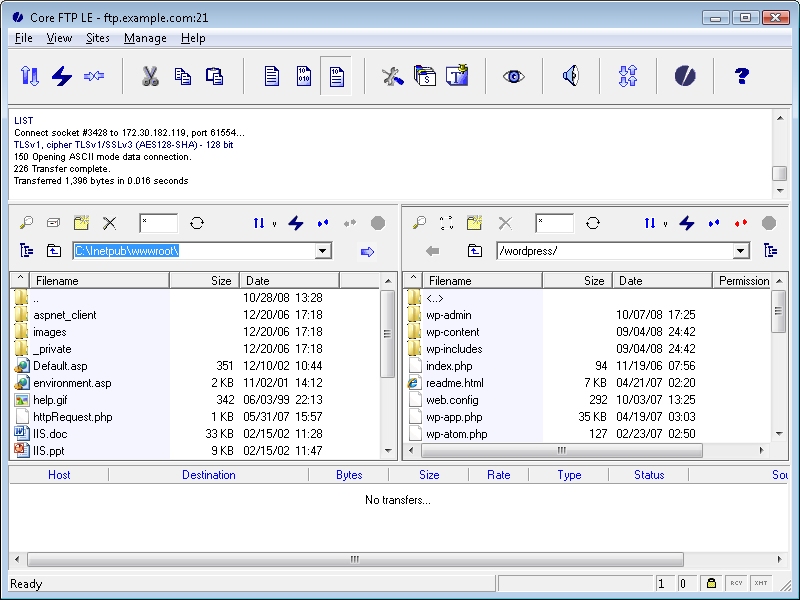
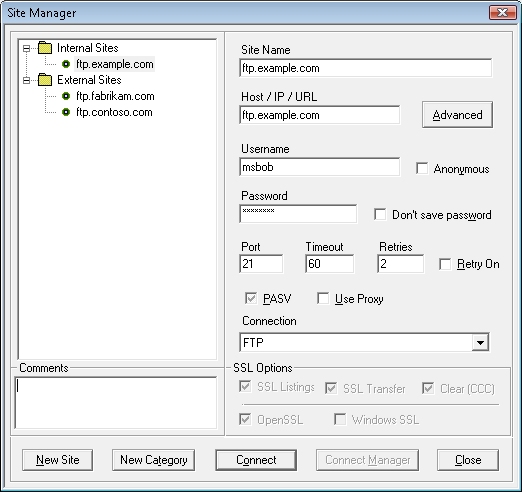
Core FTP LE has a great Site Manager feature, which allows you to store commonly-used connections to FTP sites:
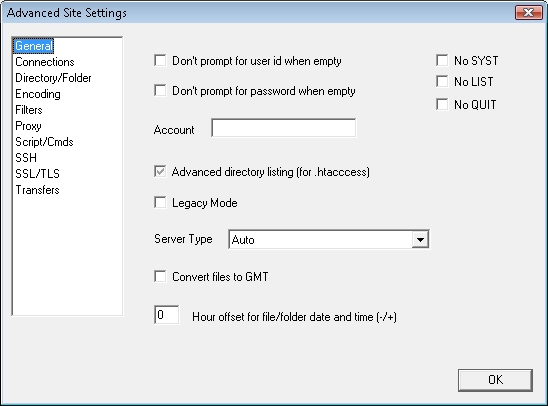
Clicking on the Advanced button gives you a great deal of additional configuration settings, and I'll say more about that later:
Command-Line Support
This is one of my favorite Core FTP LE features: command-line support. Yes - I'm a geek - and I like being able to script things and run batch jobs to automate whatever I can, so command-line support is always a plus for me. That said, the interface for the Core FTP LE command-line client is not an interactive experience like you get with the built-in Windows FTP.EXE or MOVEit Freely command-line clients. The Core FTP LE command-line client is provided as via the Corecmd.exe file that is installed in the main the Core FTP LE application directory, and is used for a single FTP operation like GET or PUT - although you can pass the name of a script file to execute several commands before/after logging in or before/after a file transfer.
So my final judgment is that the Core FTP LE client doesn't have great command-line support, but it's still really nice to have.
Using FTP over SSL (FTPS)
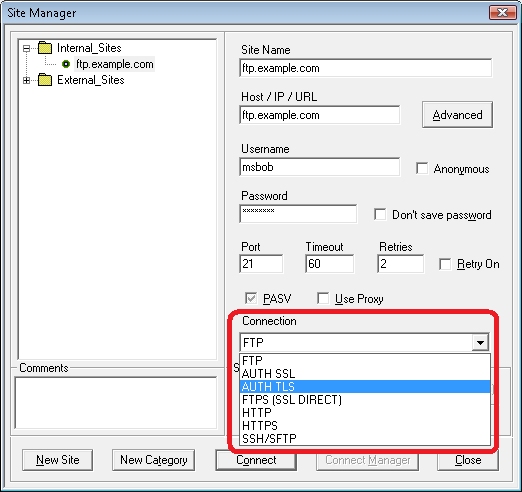
The Core FTP LE client supports both Implicit and Explicit FTPS, so the choice is up to you which method to use. When creating a connection to a server, Core FTP LE has three FTP options that you can use with FTP7:
- AUTH SSL
- AUTH TLS
- FTPS (SSL DIRECT)
It's important to choose this option correctly, otherwise you will run into problems when trying access a site using FTPS. If you'll recall from my "FTP Clients - Part 2: Explicit FTPS versus Implicit FTPS" and my other FTP client blog posts, Explicit FTPS allows the client to initiate SSL/TLS whenever it wants, but for most FTP clients that will be when logging in to your FTP site, and in that regard it may almost seem like Implicit FTPS, but behind the scenes the FTP client and server are communicating differently.
In the case of FTP7, the following rules apply:
- If you enable FTPS in FTP7 and you assign the FTP site to port 990, you are using Implicit FTPS - Core FTP LE refers to this as FTPS (SSL DIRECT). (Note: make sure that you configure your FTP client to connect on port 990.)
- If you enable FTPS in FTP7 and you assign the FTP site to any port other than port 990, you are using Explicit FTPS - Core FTP LE allows you to configure your connection to use AUTH SSL or AUTH TLS for the explicit connection.
The type of FTPS is specified on the Connection drop-down menu:
Once you have chosen an FTPS connection, the Core FTP LE client offers you additional options where you can customize which parts of the session will be encrypted:
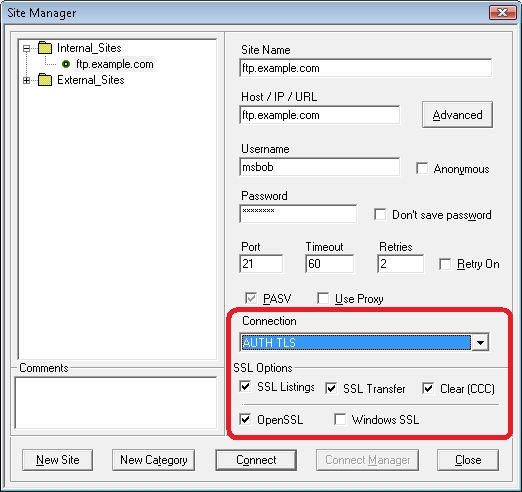
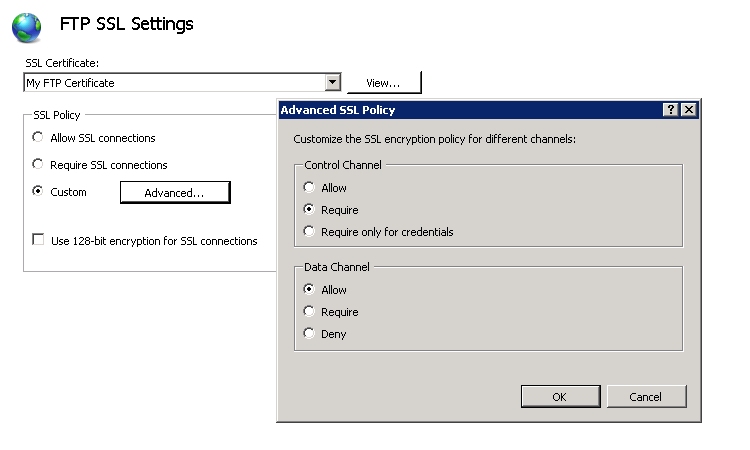
You can combine the Core FTP SSL options with the advanced SSL policies for your FTP7 sites to customize your security level:
Using FTP Virtual Hosts
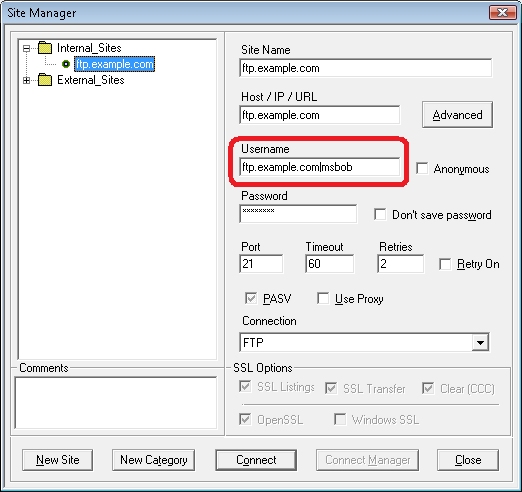
Because Core FTP LE's site manager allows you to specify the virtual host name as part of the user credentials, Core FTP LE works great with FTP7's virtual host names. All that you need to do is use the "ftp.example.com|username" syntax when specifying your username, and when you connect to the FTP7 server it will route your requests to the correct FTP virtual host site.
Using True FTP Hosts
A really great feature of Core FTP LE is the ability to send pre-login commands, and since this feature allows you to enter custom commands you can specify the actual FTP HOST command as part of your login:
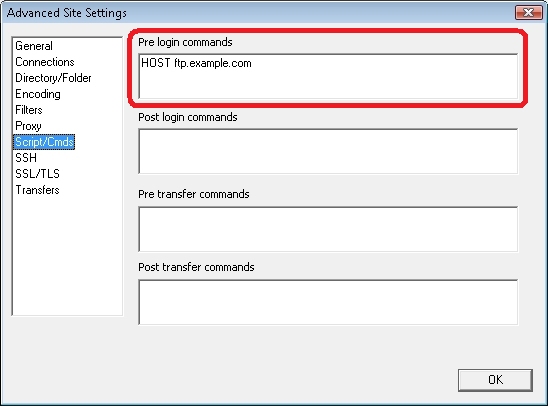
This is a tremendous feature if you're hosting multiple FTP sites on the same IP address, and gives Core FTP LE some of the best support for true FTP HOSTs.
Scorecard for Core FTP LE
That wraps it up for our quick round-trip for some of Core FTP LE's features, and here's the scorecard results:
| Client Name | Directory Browsing | Explicit FTPS | Implicit FTPS | Virtual Hosts | True HOSTs |
|---|---|---|---|---|---|
| Core FTP LE 1.3 | Rich | Y | Y | Y | Y 1 |
| Core FTP LE 2.1 | Rich | Y | Y | Y | Y 1 |
| 1 As noted earlier, true FTP HOSTs are available in Site Manager using pre-login commands. | |||||
Note: Keeping with my standard disclaimer, there are a great number of additional features that Core FTP LE provides - and I just focused on the topic areas that apply to FTP7.
Note: This blog was originally posted at http://blogs.msdn.com/robert_mcmurray/
FTP 7.5 Service Extensibility References
23 April 2009 • by Bob • IIS, FTP, Extensibility
As I pointed out in my recent blog post that was titled "FTP 7.5 and WebDAV 7.5 have been released", one of the great new features of the FTP 7.5 service is extensibility. In that blog post I mentioned that I wrote the following walkthroughs to help developers get started writing providers for the FTP 7.5 service, and these walkthroughs are all available on Microsoft's learn.iis.net Web site:
- For Managed Code Developers:
- For Native Code Developers:
We have also recently published the FTP Service Extensibility Reference on Microsoft's MSDN Web site, and here is a list of all the reference topics that we have written for FTP 7.5 service extensibility:
- FTP Managed-Code Extensibility API Reference
- FTP Native-Code Extensibility API Reference
I hope this helps!
Note: This blog was originally posted at http://blogs.msdn.com/robert_mcmurray/
Advertising IIS Around the World
10 April 2009 • by Bob • IIS, Humor, Travel
In case you haven't already surmised from some of my other blog posts, I've been around IIS for a long time, so it should go without saying that I'm a big fan of IIS.
I remember when we first released IIS 1.0 for Windows NT 3.51 and we were handing out IIS CD-ROMs at trade shows way back in early 1996; everyone kept asking, "What is this for?" (Obviously the Internet was still a new concept to a lot of people back then.) Out of nostalgia, I kept a shrink-wrapped copy of IIS 1.0 for myself, and I think that I have one of the few boxes left. It usually sits in my office next to my IIS 4.0 Limited Edition CD-ROM...
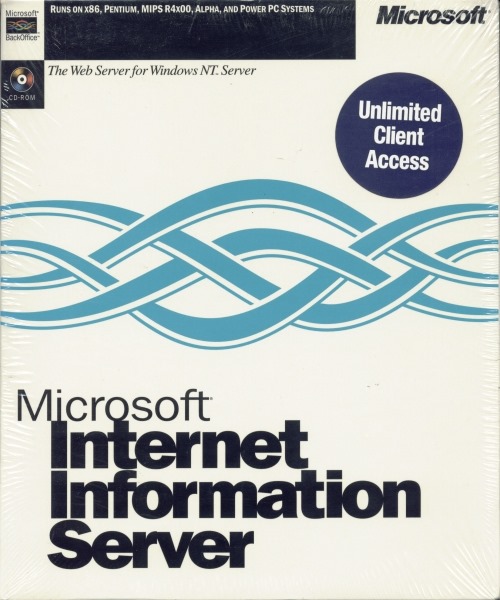

Anyway, over the years the IIS team has printed up an assortment of IIS shirts, and I have been wearing several of these various IIS shirts as I have travelled around the world. Because I have been doing so for some time, I've found myself advertising IIS in some unexpected places. For example, my wife and I were visiting our daughter in Peru this past March, and we took the following photograph of my daughter and me (wearing one of my IIS shirts) at Machu Picchu:

So - you may ask, "What does IIS have to do with one of the newest wonders of the world?" My answer is, "Um... nothing, really." I happened to be wearing my IIS shirt that day, and it made a pretty good photo. (Obviously, it was a bad hair day for me... so I'm blaming the mountain winds. ;-] )
As another example, my son and I took a road trip down the California coast this past summer to visit my brother in San Francisco, and we posed for the following photo before boarding the boat to Alcatraz:

There are other times where I have taken advantage of a situation to deliberately and shamelessly pose for IIS. For example, I was scuba diving in Hawaii a couple of years ago, and I borrowed someone's dive slate to write the following message:

Actually, I tend to wear IIS shirts when I go scuba diving as a matter of habit - it's kind of a good luck charm for me - and this behavior of mine has led to some interesting experiences.
For example, my wife and I were going scuba diving in the Bahamas several years ago, and once again I was wearing one of my IIS t-shirts that day. The dive company had sent a van to our hotel to pick up several divers, and as I climbed aboard, one of the other passengers saw my shirt and remarked, "Oh, we have an IIS person today. I'm more of an Apache Girl myself." I quickly replied, "That's okay, everybody needs a hobby." I really only expected her to get the joke, but apparently we had a tech-savvy group that day because everyone else on the bus chimed in with, "Ooooooh - you're in trouble." I didn't realize what everyone meant until we got to the dive boat where Apache Girl came walking up to me holding an air tank and said, "I'm your dive guide today, and I picked this air tank especially for you." We both had a good laugh, and I survived the dive so she can thankfully take a joke.

All that being said, I really like to show off IIS. It's a lot of fun to demonstrate the many features of IIS to customers at trade shows, and it's a lot of fun to unofficially advertise IIS when I'm traveling on vacation in various places around the world. So if you see me when I'm on vacation somewhere, the chances are good that you'll be able to find me in a crowd - because I'll be the geek wearing the IIS shirt.
Note: This blog was originally posted at http://blogs.msdn.com/robert_mcmurray/
FrontPage Macro: Fix Filenames
05 April 2009 • by Bob • FrontPage
Using this FrontPage VBA Macro
This FrontPage VBA Macro is designed to fix potential filename problems by:
- Converting all filenames to lowercase.
- Converting all non-alphanumeric characters to underscore characters.
- Removing duplicate underscore characters.
FrontPage VBA Macro Example Code
Public Sub FixFilenames()
   Dim objWebFile As WebFile
   Dim objWebFolder As WebFolder
   Dim strOldFile As String
   Dim strNewFile As String

   If Len(Application.ActiveWeb.Title) = 0 Then
      MsgBox "A web must be open." & vbCrLf & vbCrLf & "Aborting.", vbCritical
      Exit Sub
   End If

   For Each objWebFolder In Application.ActiveWeb.AllFolders
Here:
      For Each objWebFile In objWebFolder.Files
         strOldFile = objWebFile.Name
         strNewFile = FixName(strOldFile)
         If strNewFile <> strOldFile Then
            objWebFile.Move objWebFolder.Url & "/" & strNewFile & _
               ".tmp.xyz." & objWebFile.Extension, True, False
            objWebFile.Move objWebFolder.Url & "/" & strNewFile, True, False
            GoTo Here
         End If
      Next
   Next

   MsgBox "Finished!"

End Sub

Private Function FixName(ByVal tmpOldName As String) As String
   Dim intChar As Integer
   Dim strChar As String
   Dim tmpNewName As String

   Const strValid = "1234567890_-.abcdefghijklmnopqrstuvwxyz"

   tmpOldName = LCase(tmpOldName)

   For intChar = 1 To Len(tmpOldName)
      strChar = Mid(tmpOldName, intChar, 1)
      If InStr(strValid, strChar) Then
         tmpNewName = tmpNewName & strChar
      Else
         tmpNewName = tmpNewName & "_"
      End If
   Next

   Do While InStr(tmpNewName, "__")
      tmpNewName = Replace(tmpNewName, "__", "_")
   Loop

   Do While InStr(tmpNewName, "_-_")
      tmpNewName = Replace(tmpNewName, "_-_", "_")
   Loop

   FixName = tmpNewName

End Function
FTP Clients - Part 5: MOVEit Freely Command-Line Secure FTP Client
07 January 2009 • by Bob • FTP
For this installment in my series about FTP Clients, I'd like to take a look at the MOVEit Freely Command-Line Secure FTP Client ("FTPS.EXE") from Ipswitch. For this blog post I used MOVEit Freely FTP Client version 5.0.0.0, and it is available from one of the following URLs:
At the time of this blog post, Ipswitch is providing the MOVEit Freely FTP client for free, although you are required to fill out a registration page with a short questionnaire. For more information on the license for the MOVEit Freely command-line FTP client, please see Ipswitch's web site.
If you're like me and you like to script a lot of batch jobs on your servers, the MOVEit Freely command-line FTP client can be quite handy. The command set for the MOVEit Freely FTP client is a greatly-enhanced superset of the commands that are available with the command-line FTP.EXE client that is built-in to Windows, with added features that make additional functionality possible, such as SSL, passive FTP, resumable downloads, etc. There is a manual available with the MOVEit Freely FTP client, and I highly recommend using the manual as a reference when writing automation scripts because there are a lot of options that are available to you.
Active and Passive FTP
One of the great things about the MOVEit Freely command-line FTP client is the ability to use either Passive or Active connections, and you can switch between the two connection types using the "passive" command in the FTP session. This helps immensely when working with firewalls and such. The following example shows what that might look like:
Using FTP over SSL (FTPS)
The MOVEit Freely command-line FTP client supports both Implicit and Explicit FTPS, so the choice is up to you which one to use, but I generally use Explicit FTPS since Implicit FTPS should be considered obsolete. The SSL mode is specified using the "-e:" parameter on the command-line, and the 5.0.0.0 version of the MOVEit Freely command-line FTP supports the following values for that parameter:
Parameter FTPS Mode Description off n/a Specifies that no encryption will be used on either the control channel or data channel. Note: This is the default behavior.
on Explicit Specifies that both the control channel and data channel will use encryption over an explicit FTPS connection. Notes:
- This uses the AUTH TLS, PBSZ 0, and PROT P commands when establishing a connection.
- You can use "prot on" and "prot off" to specify whether encryption will be used. (See Note 1 below.)
on-ccc Explicit Specifies the control channel will use encryption over an explicit FTPS connection during login, but the control channel will switch to unencrypted after a login has been established. Data channel connections will still be encrypted. Notes:
- This uses the AUTH TLS, PBSZ 0, and PROT P commands to enable encryption when establishing a connection, then uses the CCC command after the username and password are successfully negotiated. (See Note 2 below.)
- The USER and PASS commands are the only commands that will be encrypted; all other FTP commands are unencrypted.
tls-p Explicit Specifies that both control and data channel will use encryption over an explicit FTPS connection. Notes:
- This uses the AUTH TLS and PROT P commands when establishing a connection.
- You can use "prot on" and "prot off" to specify whether encryption will be used. (See Note 3 below.)
tls-c Explicit Specifies that only the control connection will use encryption over an explicit FTPS connection. Data channel connections will be unencrypted. Notes:
- This uses only the AUTH TLS to enable encryption when establishing a connection.
- You must manually send a PBSZ command before you can use the "prot on" and "prot off" to specify whether encryption will be used. (See Note 1 and Note 3 below.)
tls-c-ccc Explicit Specifies that only the control connection will use encryption over an explicit FTPS connection during login, but the control channel will switch to unencrypted after a login has been established. Data connections will be unencrypted. Notes:
- This uses only the AUTH TLS to enable encryption when establishing a connection, then uses the CCC command after the username and password are successfully negotiated.
- The USER and PASS commands are the only commands that will be encrypted; all other FTP commands are unencrypted.
implicit Implicit Specifies that both the control channel and data channel will use encryption over an implicit FTPS connection, which can only be on port 990 for the FTP7 service. Notes:
- The implicit FTPS connection will encrypt both the control channel and data channel without the use of an AUTH command.
- You can use "prot on" and "prot off" to specify whether encryption will be used. (See Note 3 below.)
implicit-ccc Implicit Specifies that the control channel would use encryption over an implicit FTPS connection during login and switch the control channel to unencrypted after login, but this is not supported in FTP7. The implicit FTPS connection will succeed, but the FTP7 service will return an error when the CCC command is sent. You can ignore the error and continue to use the session. Notes:
- Implicit FTPS connections require encryption for the command channel. (See Note 4 below.)
- You can use "prot on" and "prot off" to specify whether encryption will be used. (See Note 3 below.)
The following notes should be considered:
- Encryption of the data connection can be changed during the session with MOVEit Freely's "prot" command. You can use the "prot on" to specify that data connections will be encrypted, and "prot off" to specify that data connections will be unencrypted; these commands will respectively send the PROT P and PROT C commands over FTP.
- The "on-ccc", "tls-c-ccc", and "implicit-ccc" parameters are useful with firewalls that inspect FTP traffic. Switching the control channel back to unencrypted allows the firewall to inspect and possibly modify the FTP commands. For example, firewalls that are performing Network Address Translation (NAT) may need to modify the PORT and PASV commands.
- "RFC 2228 - FTP Security Extensions" states that FTP clients are required to send an FTP PBSZ command before sending an FTP PROT command, and unfortunately the MOVEit Freely 5.0.0.0 FTP client does not send this command, so you get a "503 Bad sequence of commands" error. You can work around this by issuing a literal command to the server using the FTP client's "quote" command, which appears to work. See the following example for more information. The following example shows what that might look like:
Note: I turned on debugging for this example with the "-d" option so you can see the sequence of commands.
CMD>ftps.exe -e:tls-c -d ftp.example.com

220 Microsoft FTP Service
---> AUTH TLS
234 AUTH command ok. Expecting TLS Negotiation.
Connected to ftp.example.com.
User: administrator
---> USER administrator
331 Password required for administrator.
Password: ********
---> PASS (hidden)
230 User logged in.
---> SYST
215 Windows_NT
ftp> prot on
---> PROT P
503 Bad sequence of commands.
Data connections will still NOT be encrypted
ftp> quot PBSZ 0
---> PBSZ 0
200 PBSZ command successful.
ftp> prot on
---> PROT P
200 PROT command successful.
Data connections will be encrypted
ftp> bye
---> QUIT
221 Goodbye.

CMD>
- The FTP7 service treats implicit FTPS connections as though the SSL policy for the control is set to "Require".
One last note about FTPS, if you are using a certificate with trust issues, you will see the following prompt displayed:

You can get around this certificate prompt when writing scripts by using the "-z" switch. The following example shows what that might look like:
Note: For this example I bypassed a certificate prompt with the "-z" switch, and I specified passive FTP with the "passive" command.
Using FTP Virtual Hosts
Since everything is happening from a command-line, you can use both FTP7's Virtual Hosts and the actual FTP HOST command. Once again, see my Virtual Hosts and Host Names in FTP7 blog post for more information about FTP Virtual Host Names and FTP True Host Names, and see https://datatracker.ietf.org/drafts/draft-hethmon-mcmurray-ftp-hosts/ for more information about status of the FTP HOST command.
In any event, FTP7 virtual hosts are supported by using the "ftp.example.com|username" syntax when specifying your username, and when you connect to the FTP7 server it will route your requests to the correct FTP virtual host site. The following example shows what that might look like:
True FTP hosts can be used by specifying the FTP HOST command before the client sends the USER and PASS credentials. This is accomplished in two parts:
- You need to suppress the automatic username prompt MOVEit client by using the "-n" switch on the command-line.
- You need to specify the host name using the MOVEit client's "quote" command, which allows you to send custom FTP commands. The syntax for this would be "quote HOST ftp.example.com".
The following example shows what that might look like:
Scorecard for the MOVEit Freely command-line FTP client
This concludes our quick look at some of the features that are available with the MOVEit Freely command-line FTP client, and here's the scorecard results:
| Client Name | Directory Browsing | Explicit FTPS | Implicit FTPS | Virtual Hosts | True HOSTs |
|---|---|---|---|---|---|
| MOVEit Freely 5.0.0.0 | n/a | Y | Y | Y | Y 1 |
| 1 As noted earlier, true FTP HOSTs are available when using the "quote HOST ftp.example.com" syntax. | |||||
Note: Keeping with my standard disclaimer, there are a great number of additional features that the MOVEit Freely command-line FTP client provides - I'm just keeping the focus on those topic areas that apply to FTP7.
Note: This blog was originally posted at http://blogs.msdn.com/robert_mcmurray/